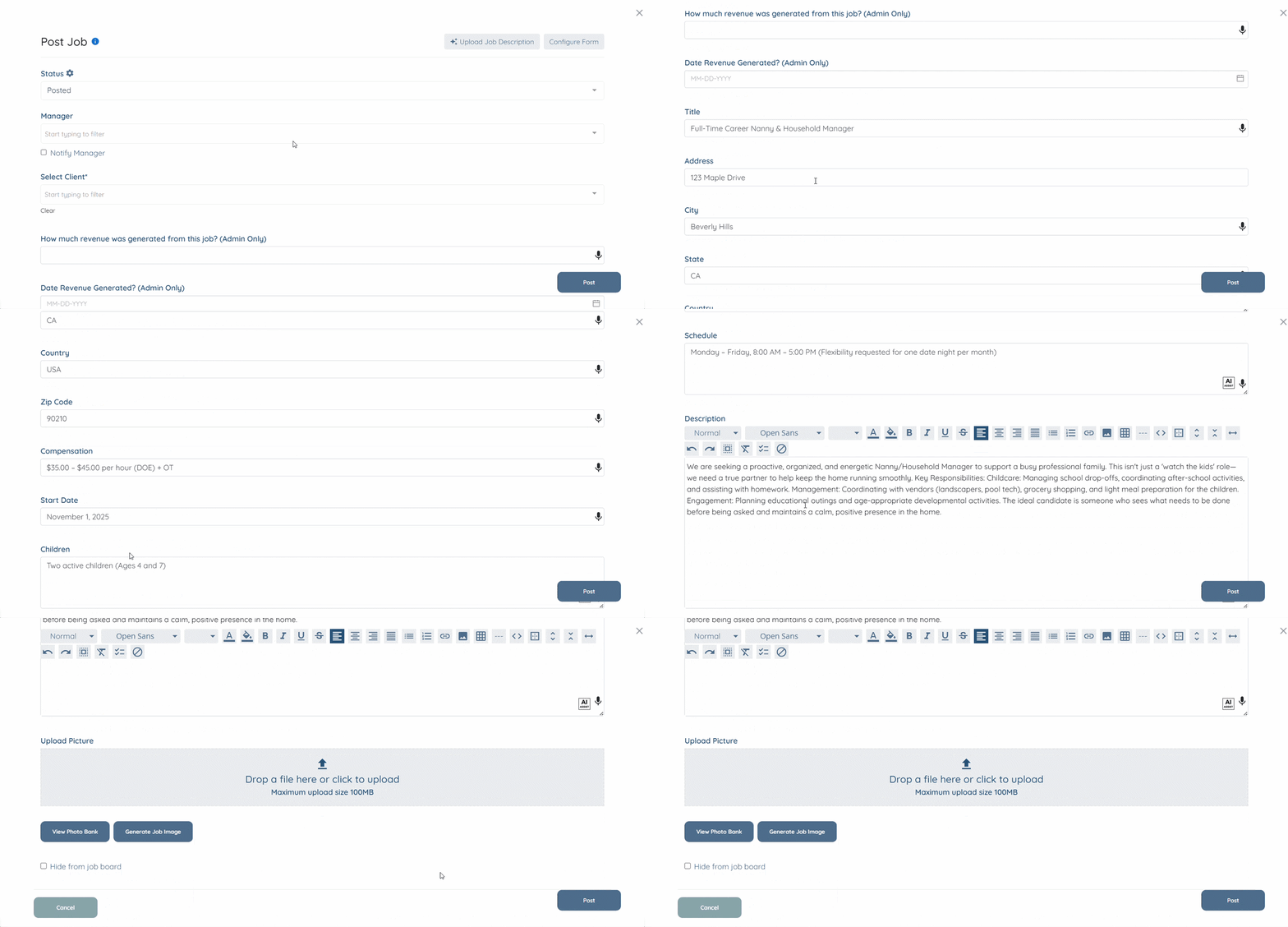
Let’s get started 🚀
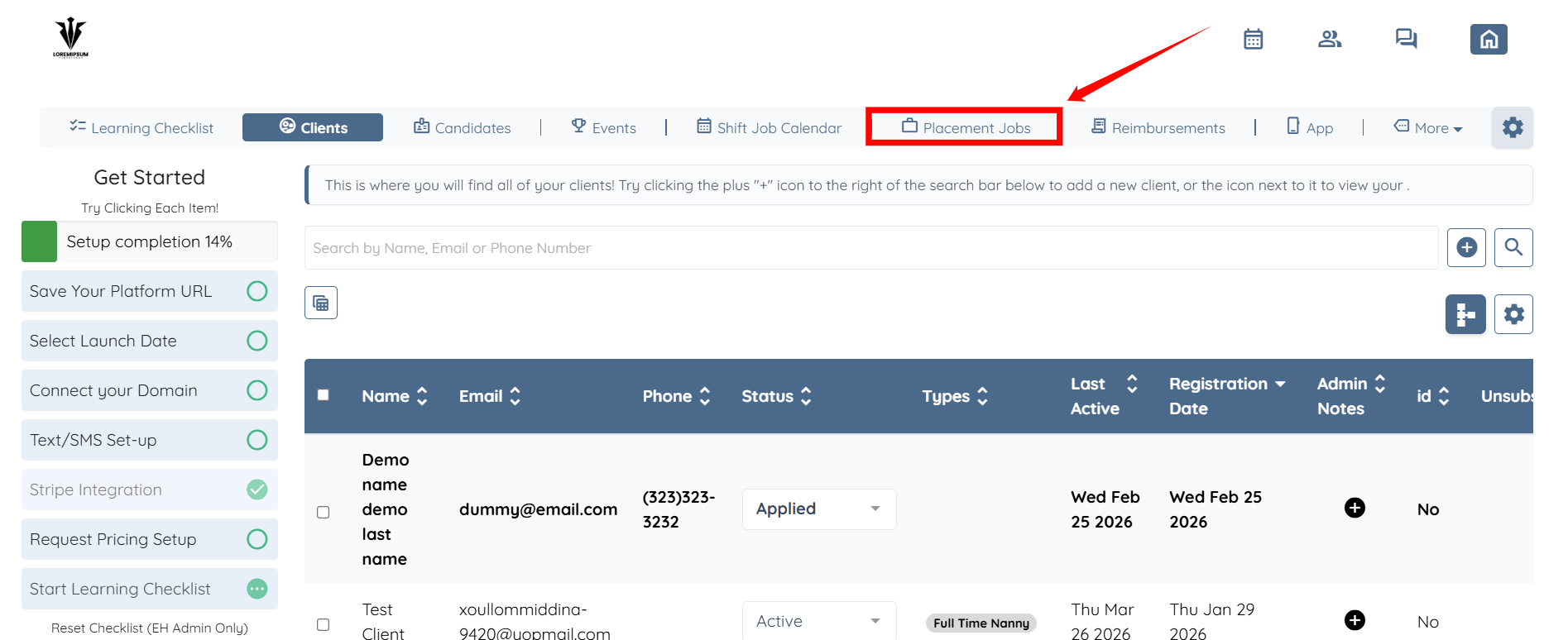
Step 1: Log in to your agent dashboard and click Placement Jobs in the navigation bar.
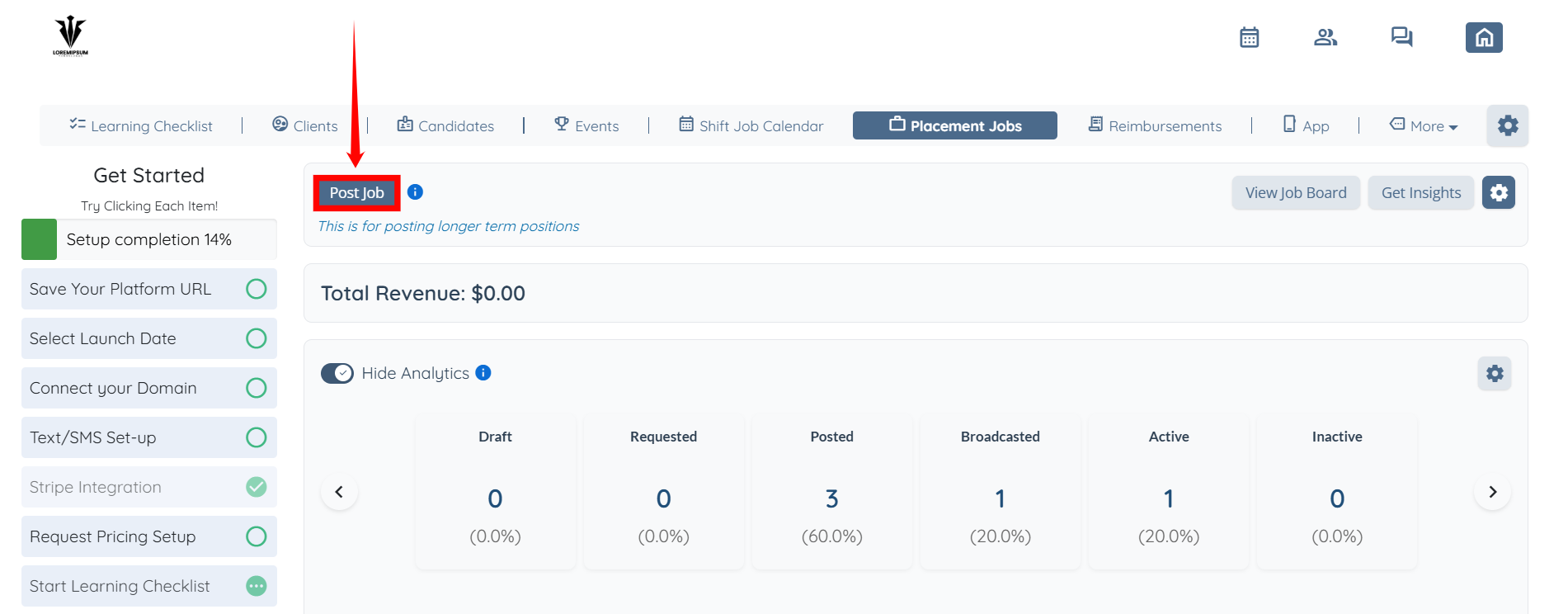
Step 2: Click the Post Job button to start adding a new job.
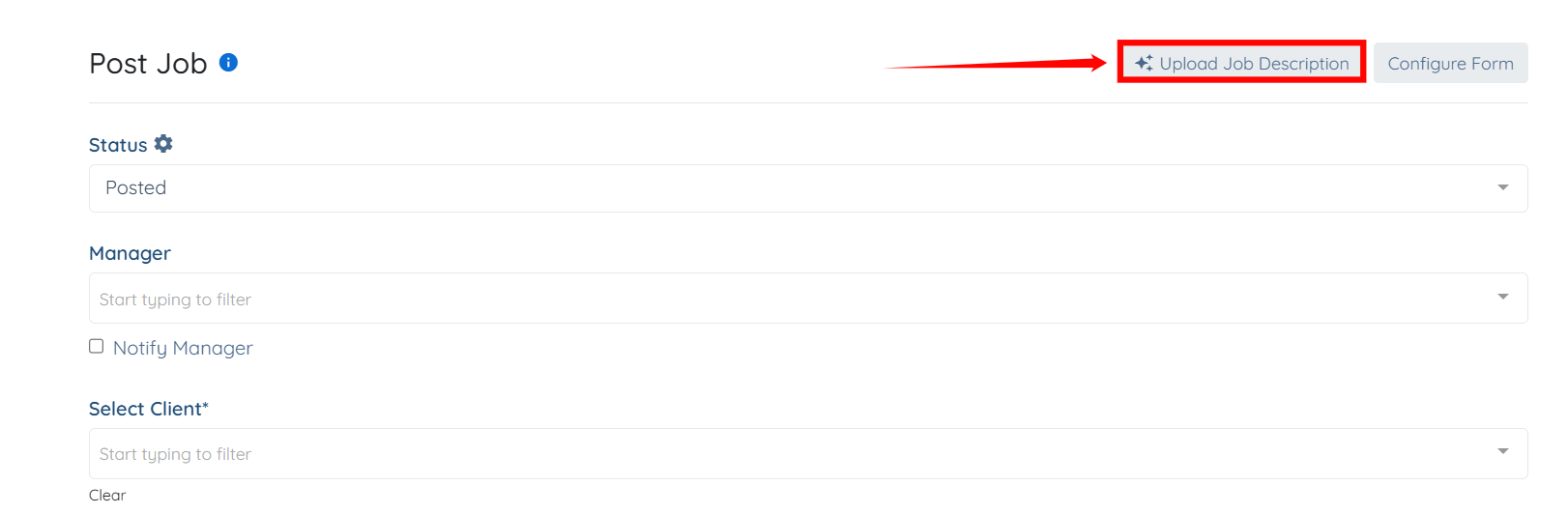
Step 3: Click the Upload Job Description button.
Upload Image
Upload an image of the job description to automatically extract details and populate selected fields in the placement job form.
Step 1: Under the Upload Image option, click Choose Image button and select the image you want to use.
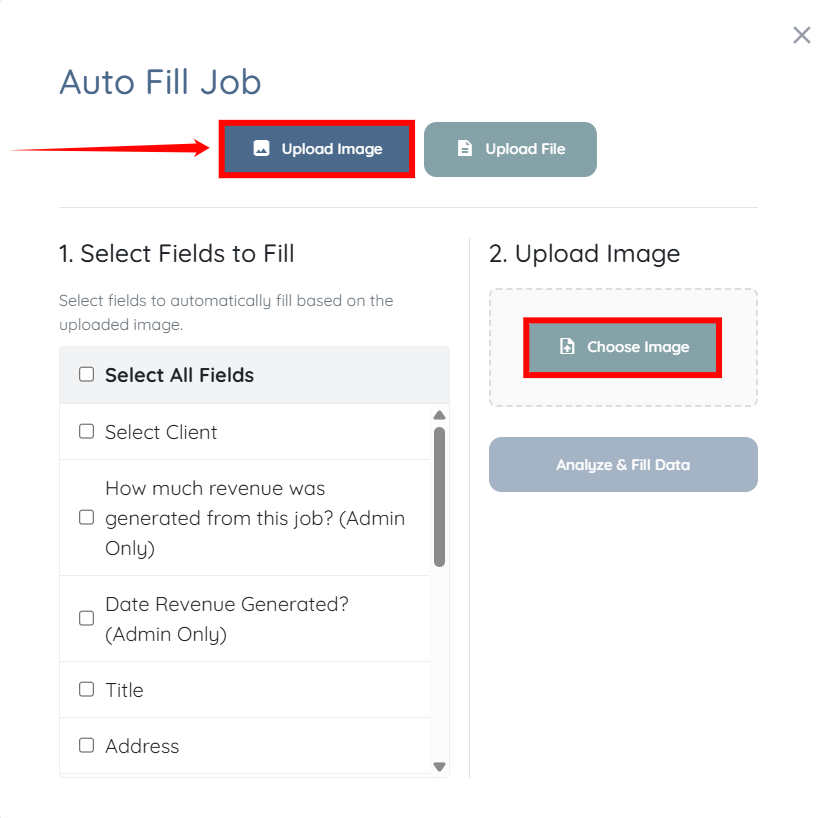
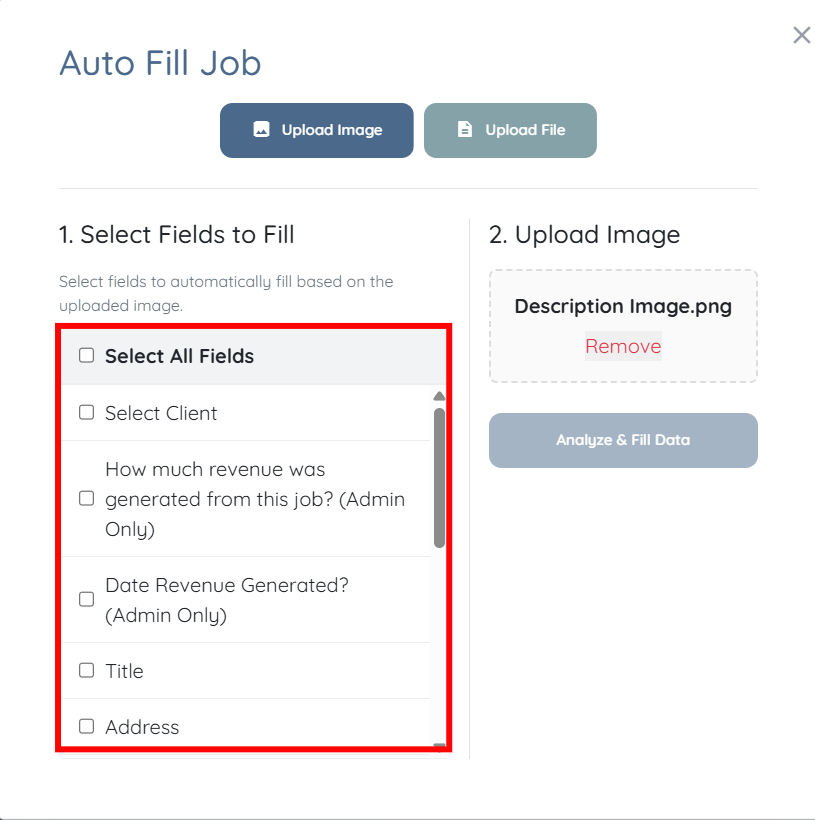
Step 2: Select the fields you want to automatically fill based on the uploaded image.
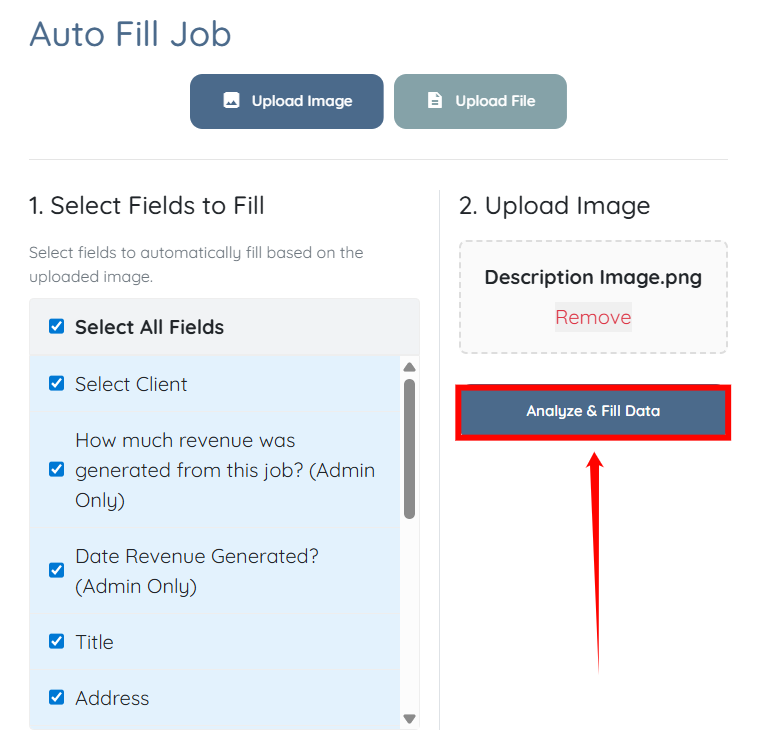
Step 3: Click Analyze & Fill Data to start the autofill process.
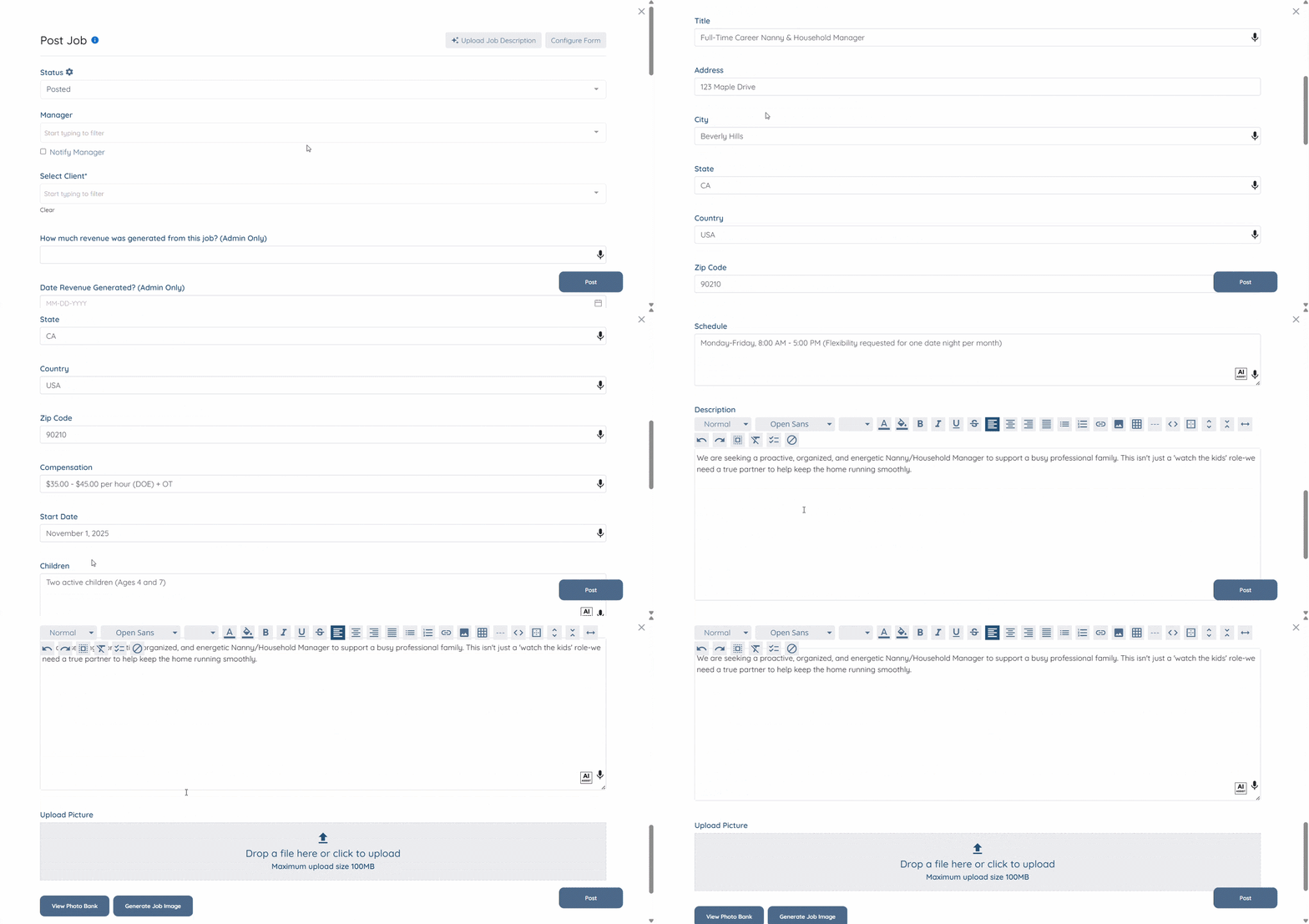
The selected fields will be automatically populated based on the uploaded image.
Upload File
Upload a document containing job details to automatically extract and populate selected fields in the placement job form.
Follow the same steps as in the Upload Image section above to autofill the placement job form using a document or file.
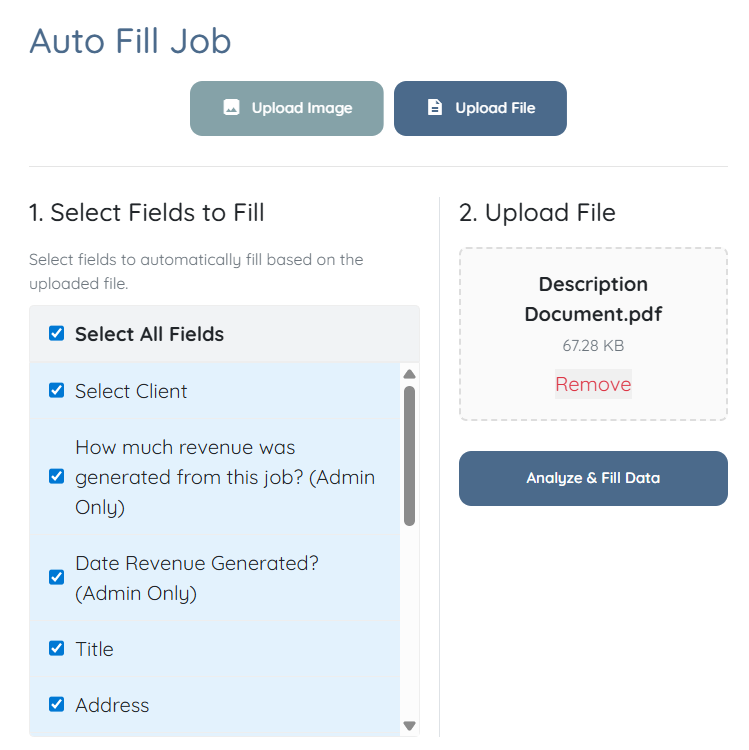
The selected fields will be automatically populated based on the uploaded file.