
Let’s get started 🚀
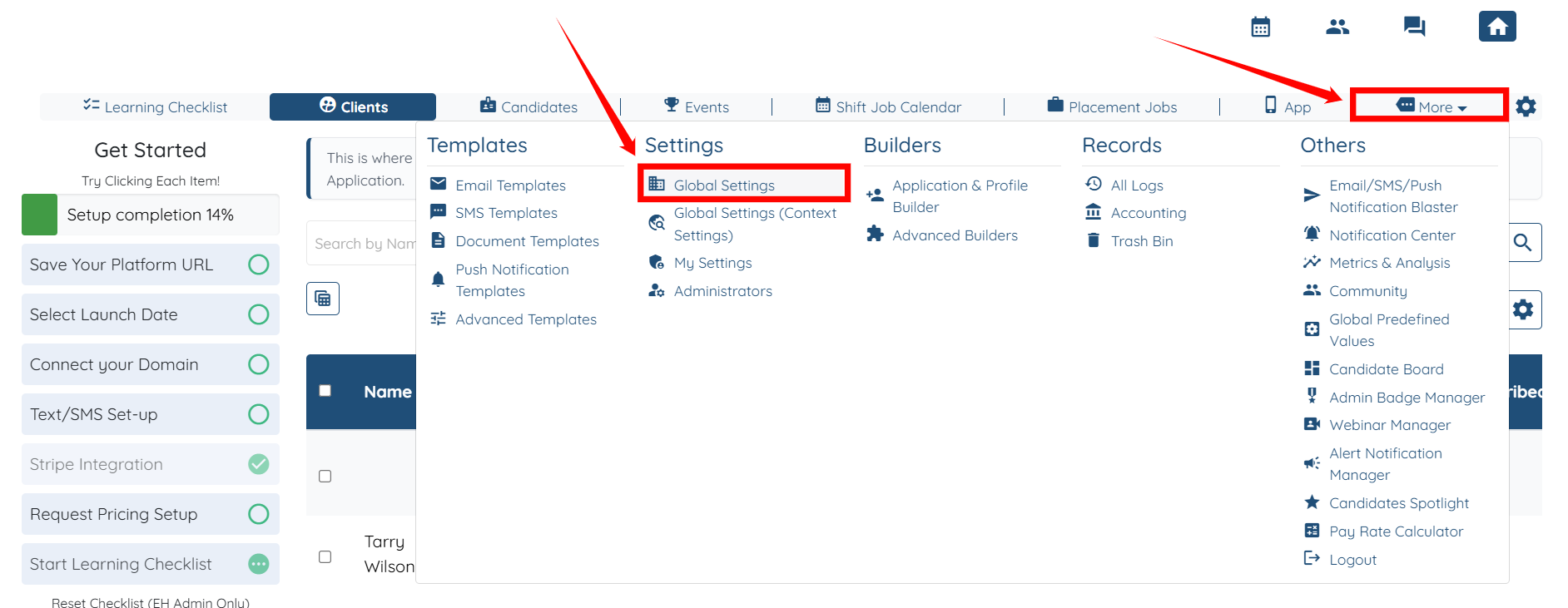
Step 1: Log in to your agent dashboard, then click More > Global Settings, as shown in the screenshot below.
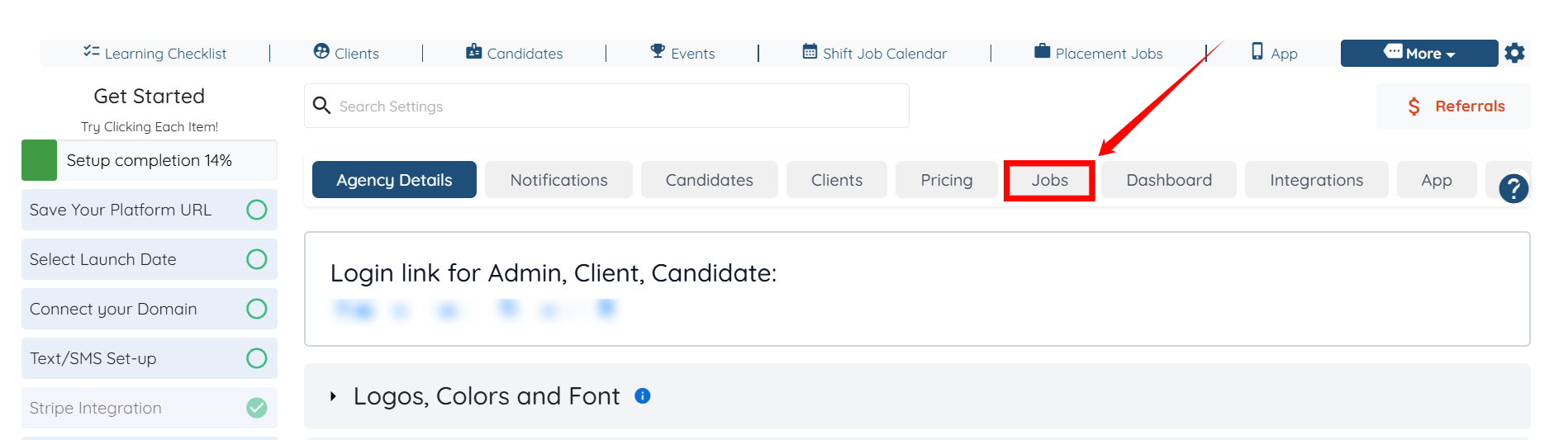
Step 2: Click the Jobs tab from the list of available tabs.
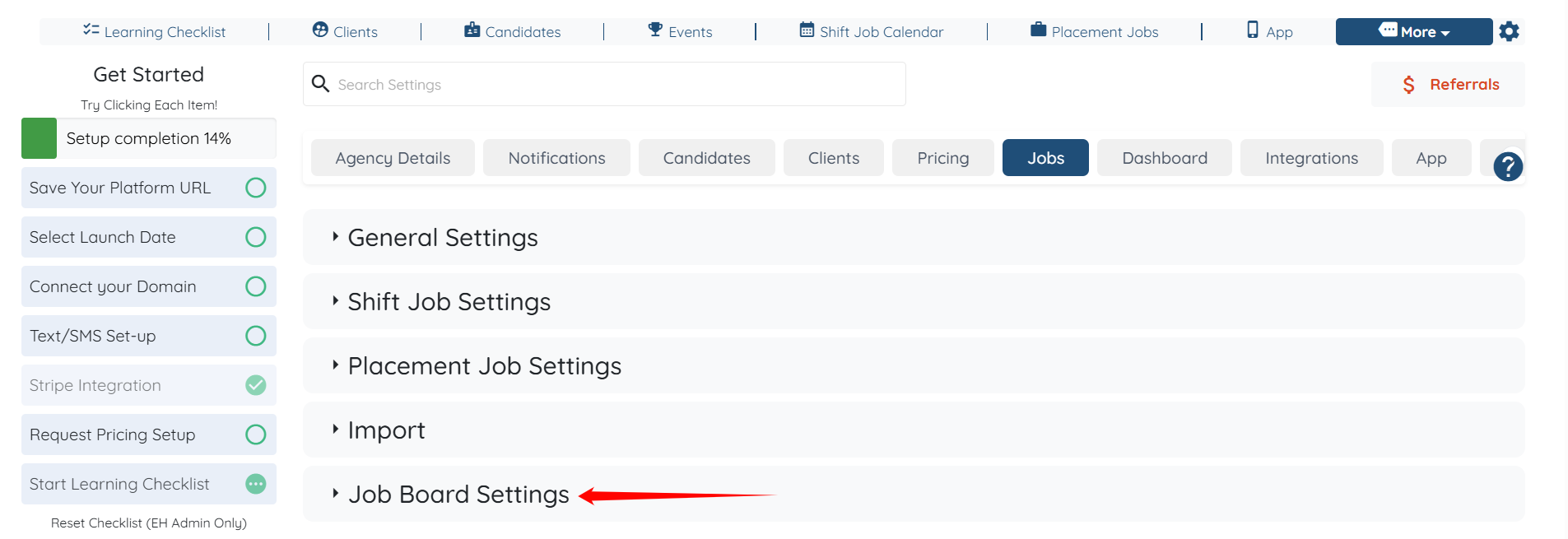
Step 3: Click the Job Board Settings to expand its details.
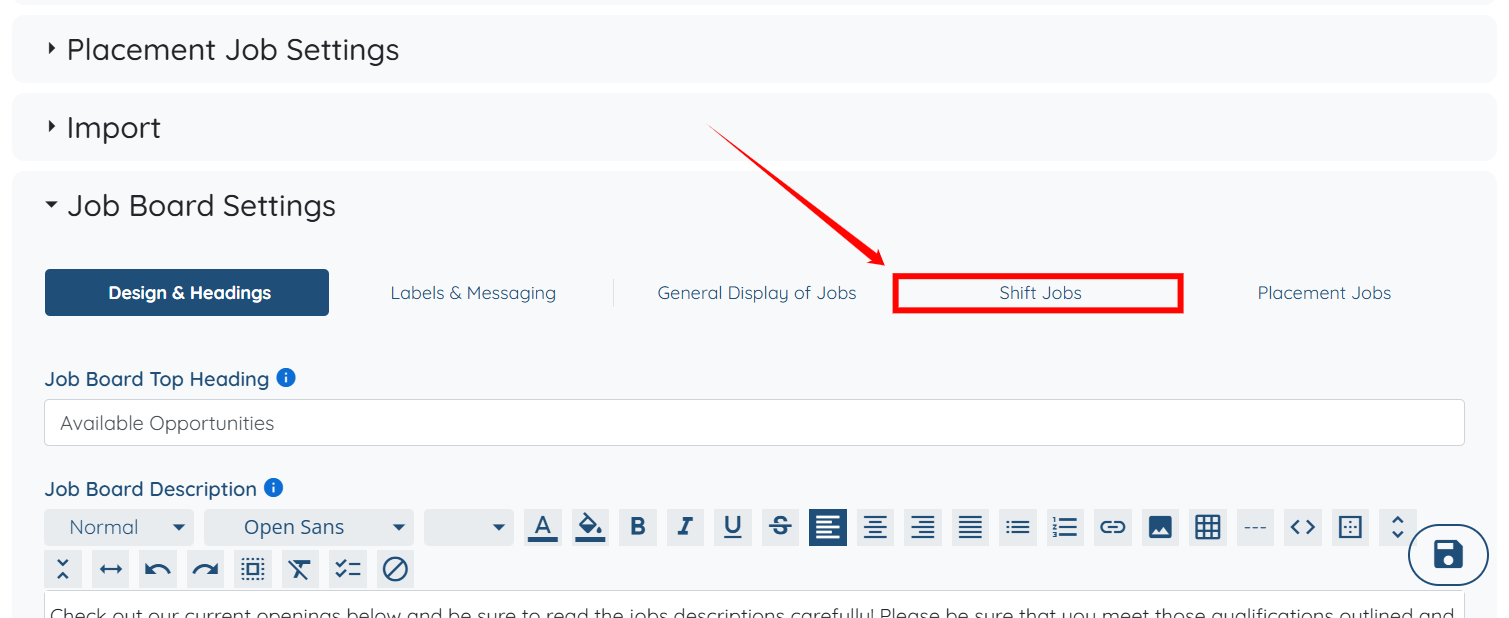
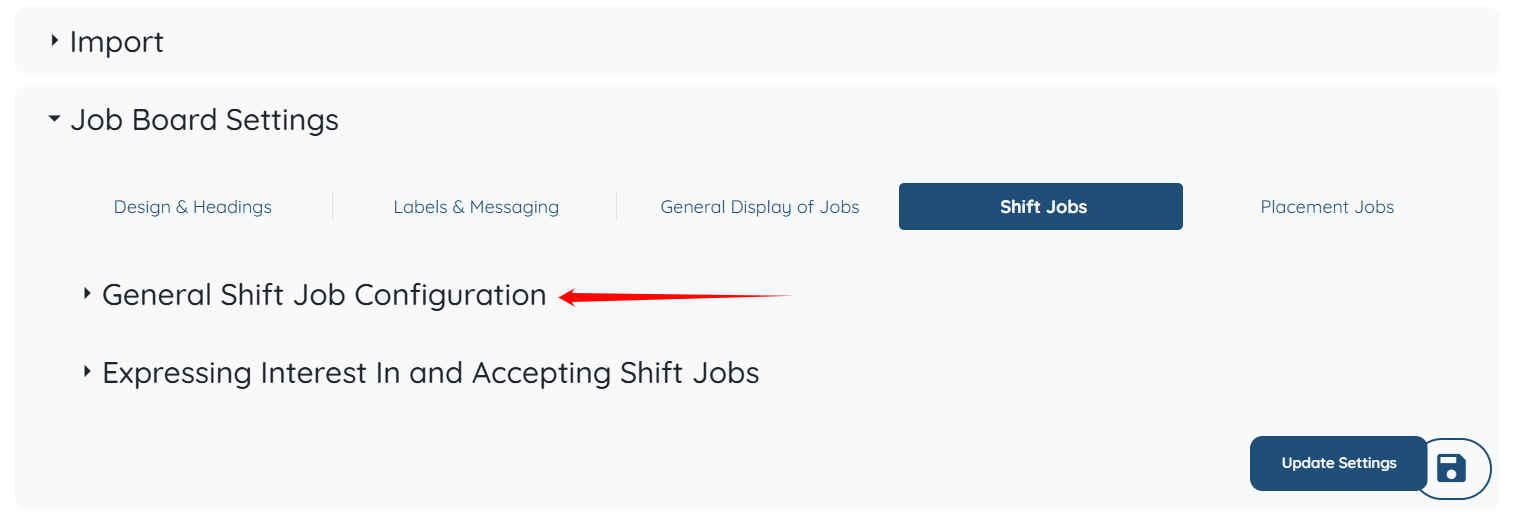
Step 4: Click the Shift Jobs tab as shown in the screenshot below.
Step 5: Click the General Shift Job Configuration option to expand its details.
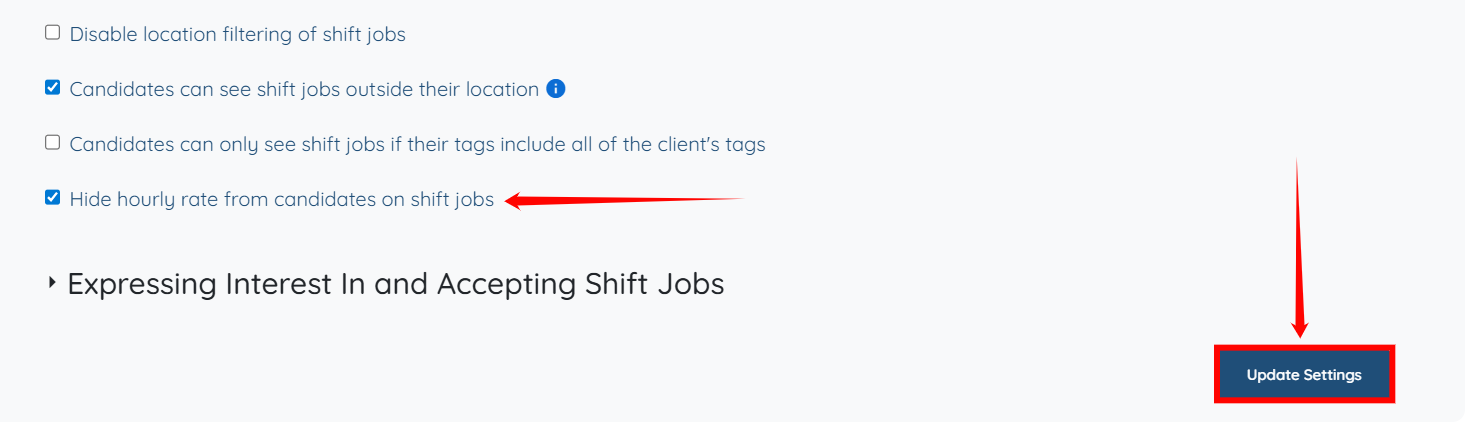
Step 6: Check the Hide hourly rate from candidates on shift jobs checkbox, then click the Update Settings button.
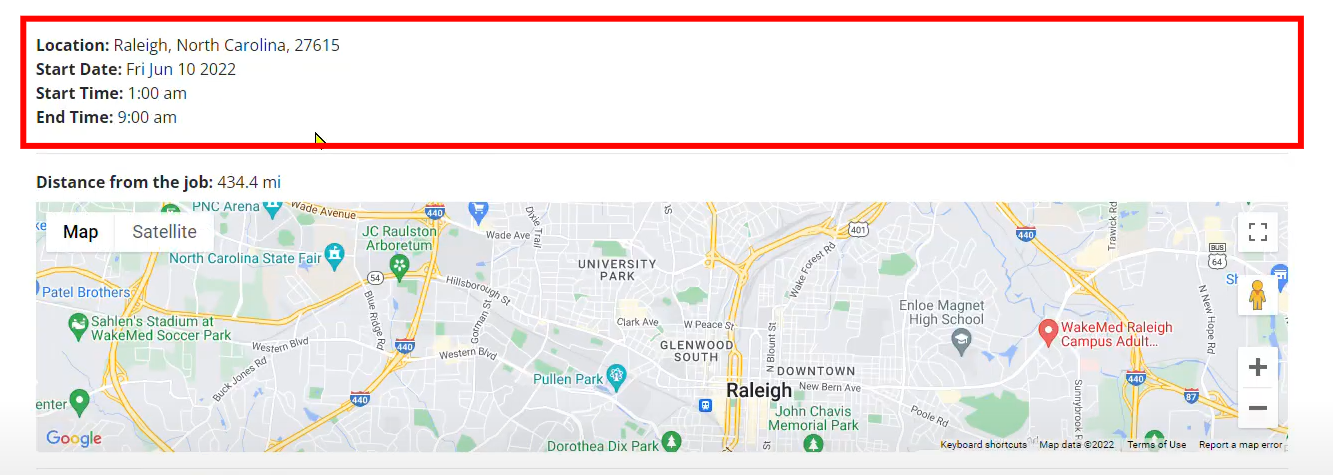
The hourly rate will then be successfully hidden from the candidate’s view.
If this video doesn't answer your questions you can always contact us by clicking here