Let’s get started 🚀
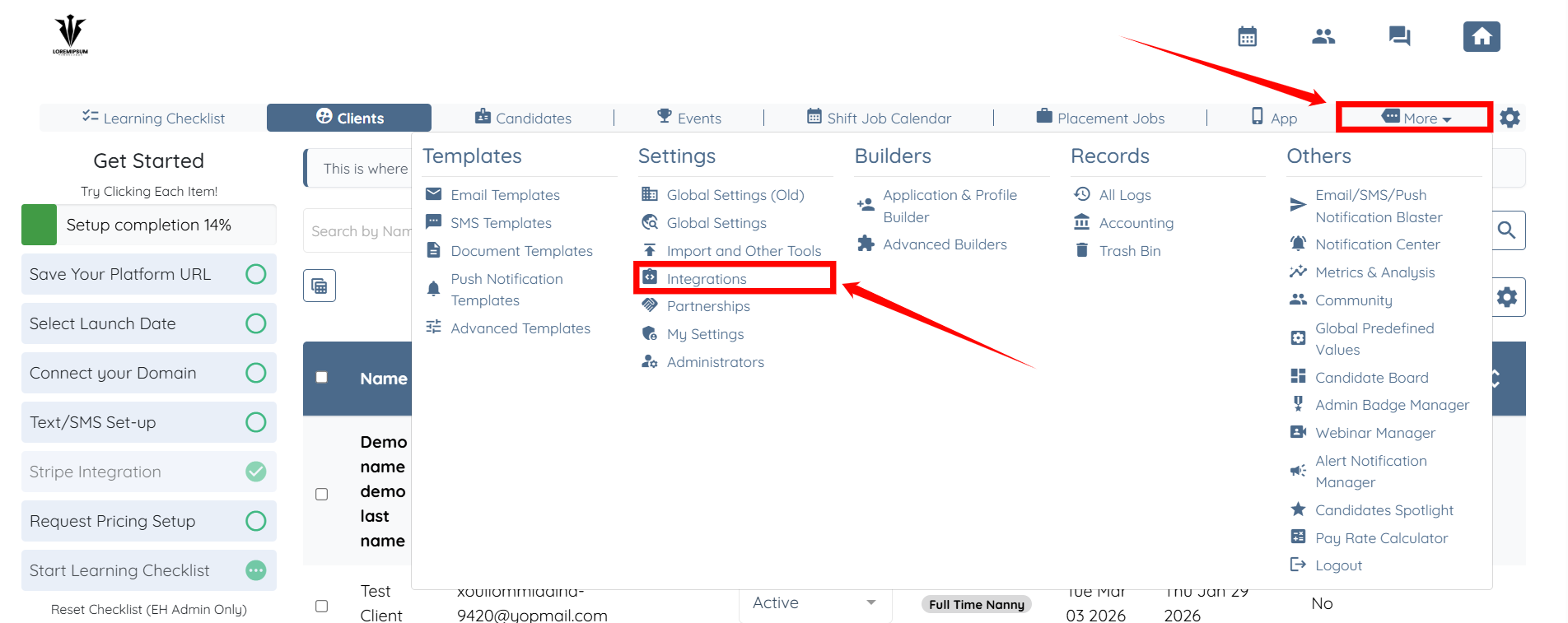
Step 1: Log in to your agent dashboard and click More > Integrations as shown in the screenshot below.
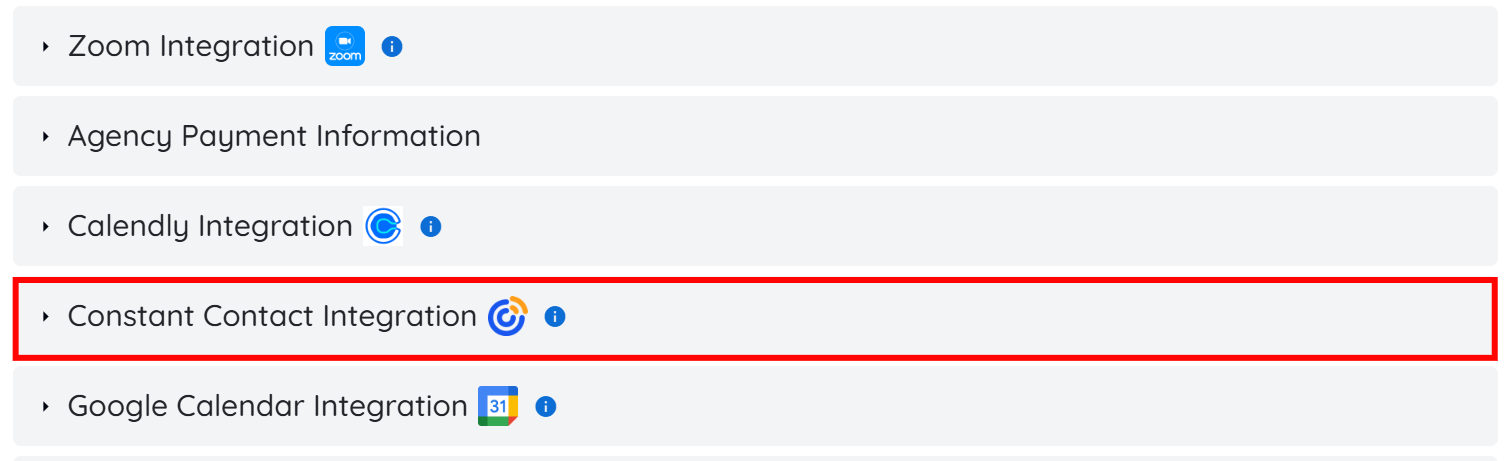
Step 2: Click the Constant Contact Integration to expand its details.
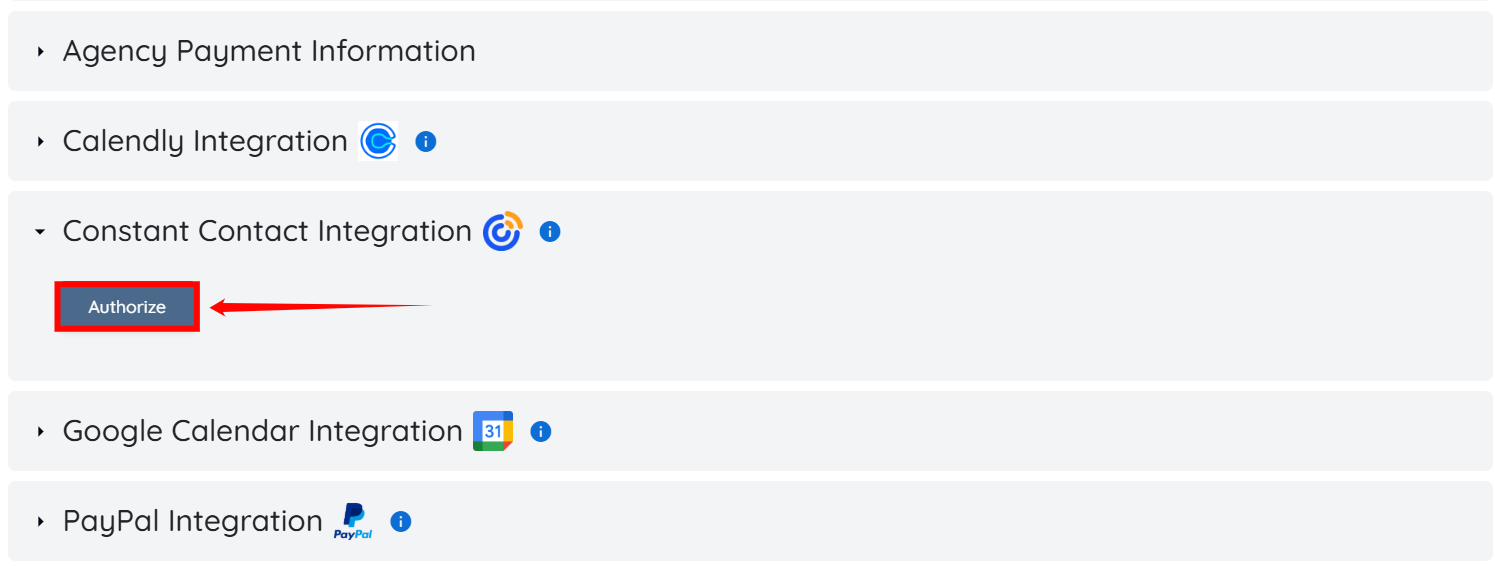
Step 3: Click the Authorize button.
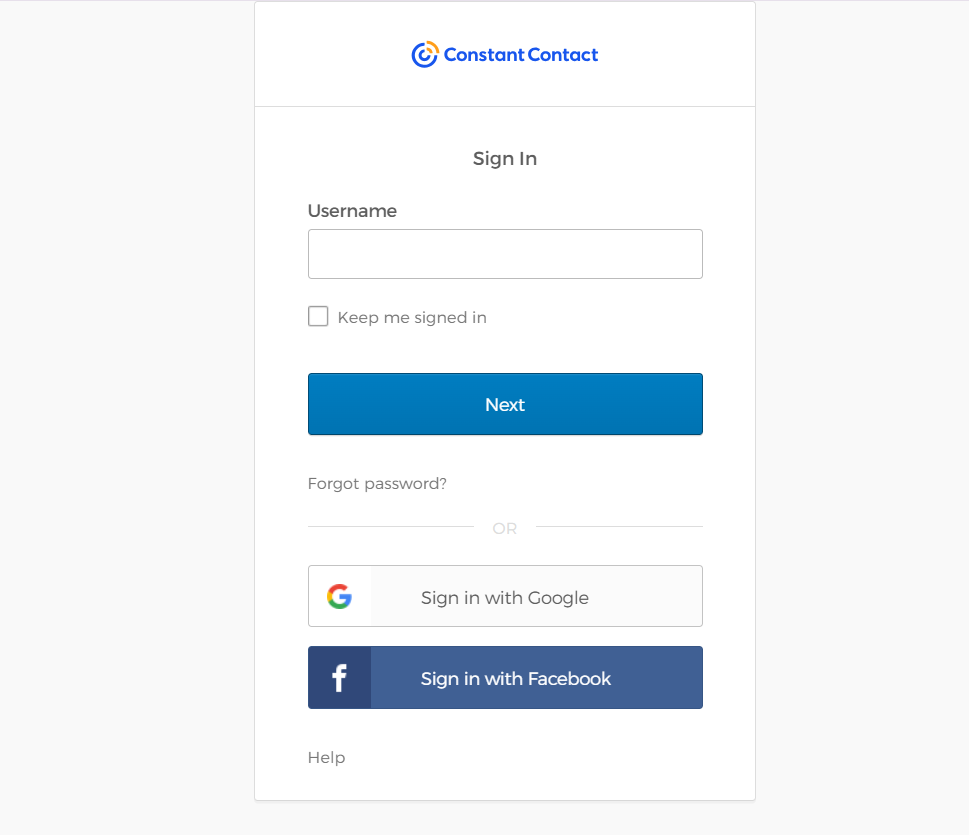
Step 4: A Constant Contact login window will appear. Enter your Constant Contact credentials to connect your account with EngineHire.
Step 5: Click the Allow Access button to grant permission for the campaign_data and contact_data actions.
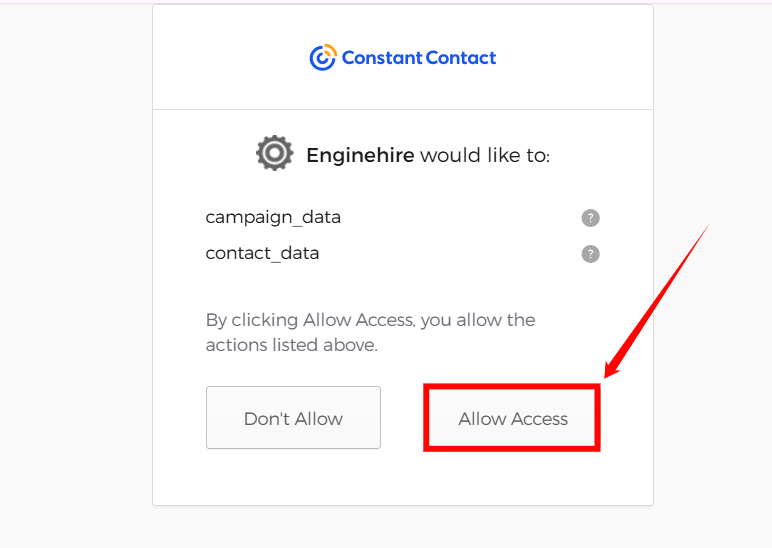
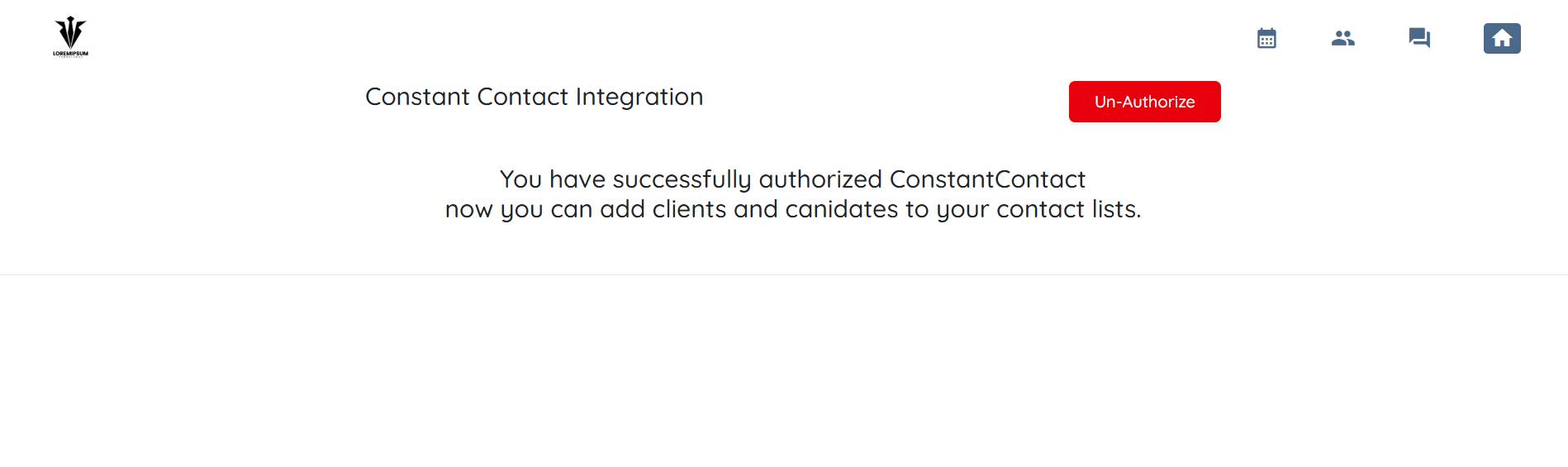
You will be successfully authorized for the Constant Contact integration. You can now add clients and candidates directly to your Constant Contact contact lists.

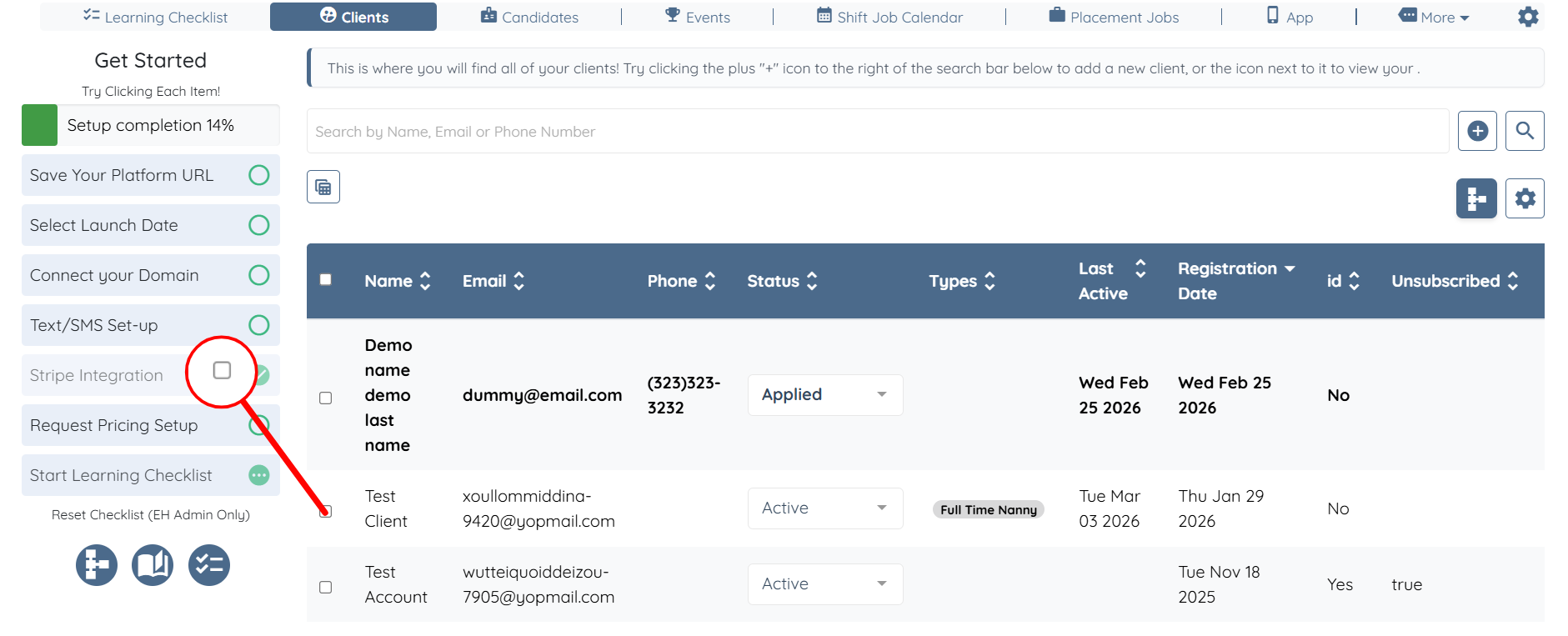
Step 1: Check the checkbox near to the name of the client(s) you want to add.
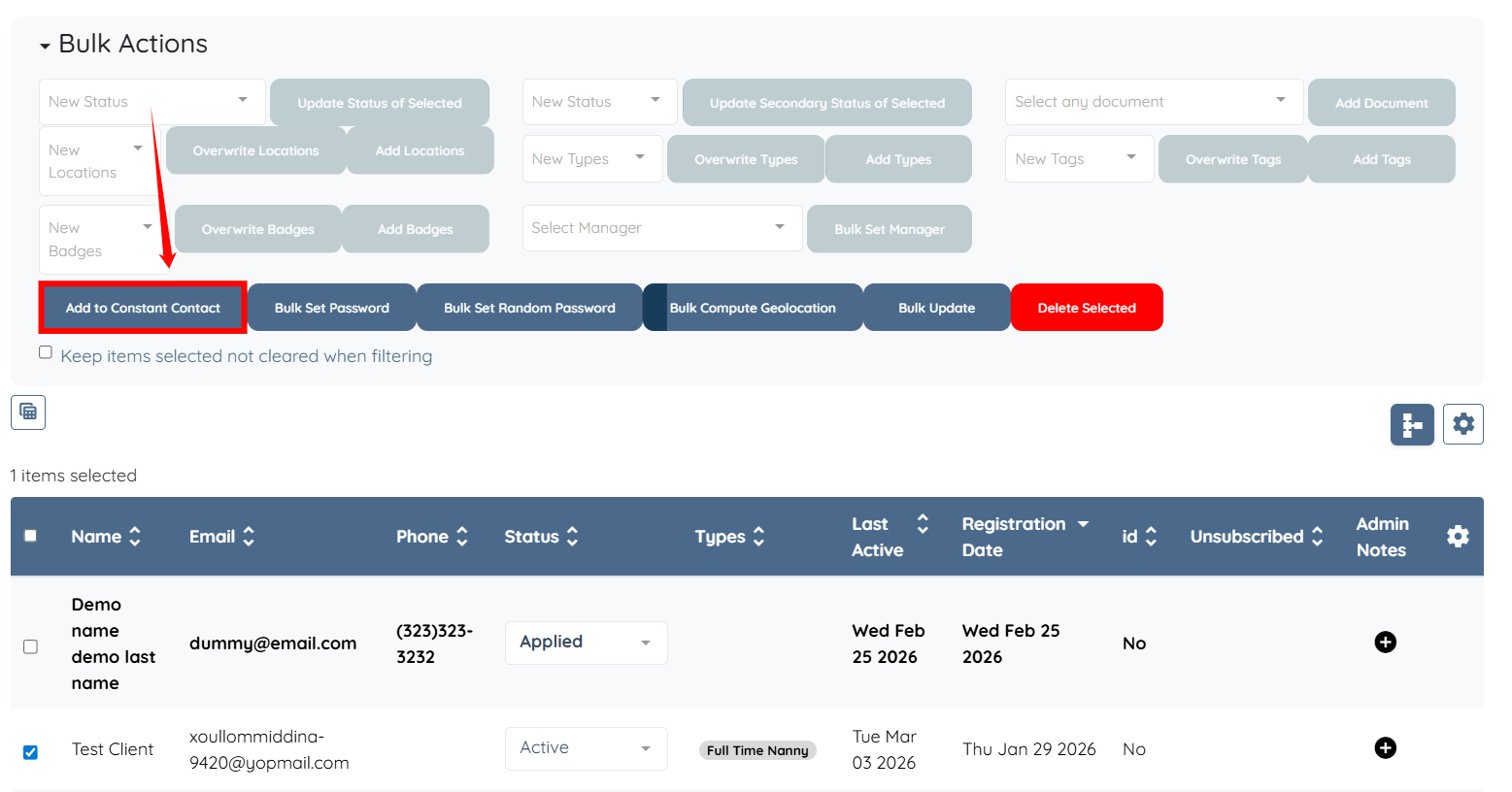
Step 2: Click the Add to Constant Contact button.
Step 3: Select the contact list where you want to add the selected clients, then click Add to proceed.
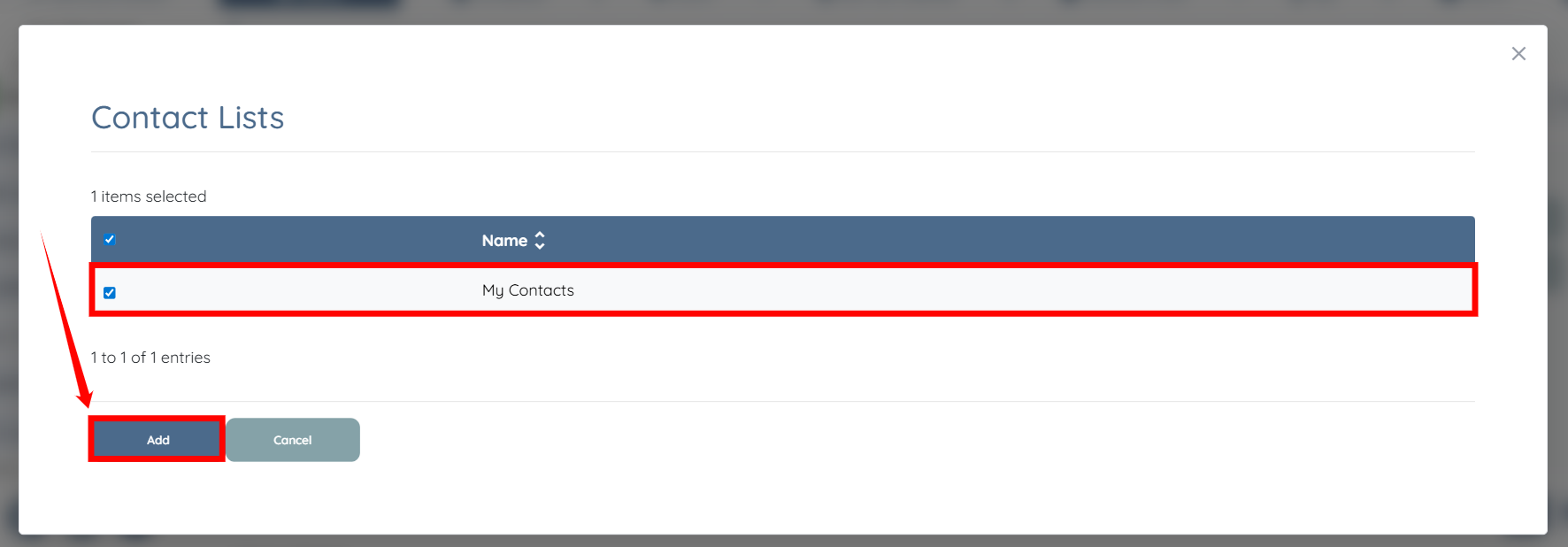
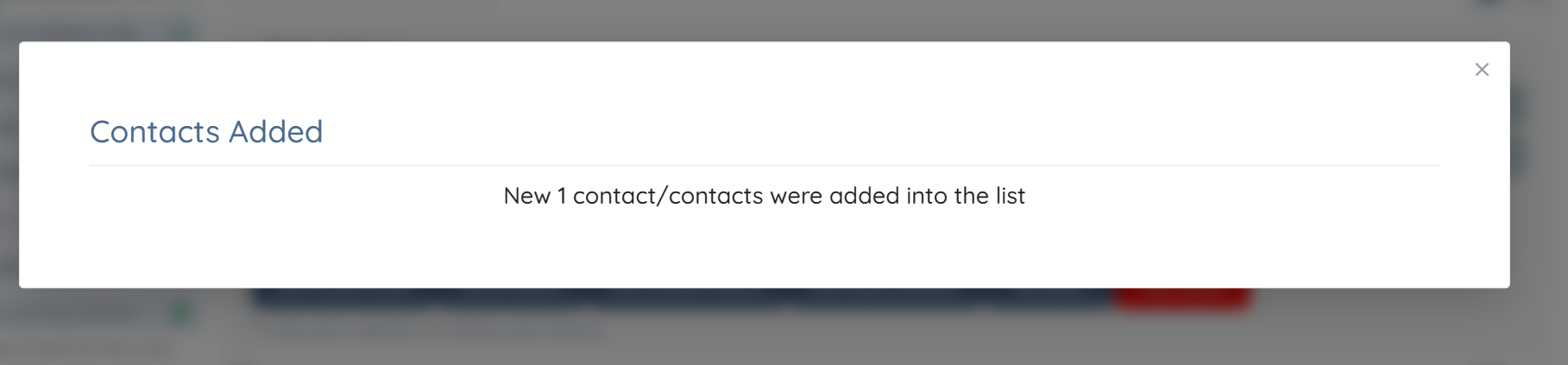
The selected clients will be successfully added to the chosen Constant Contact list.
If this doesn't answer your questions you can always contact us by clicking here
