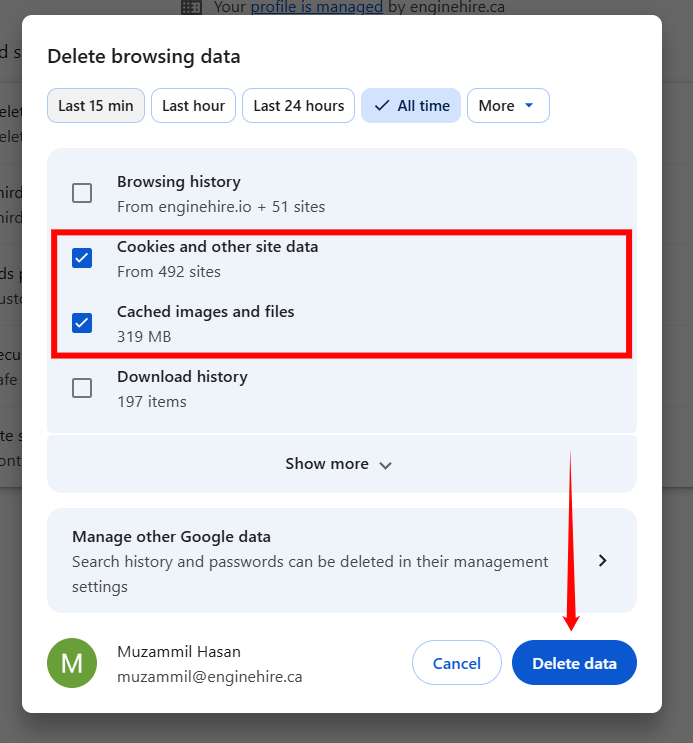
Let’s get started 🚀
Clear cached data for a single website if you are experiencing issues only on that site and do not want to remove data for other websites.
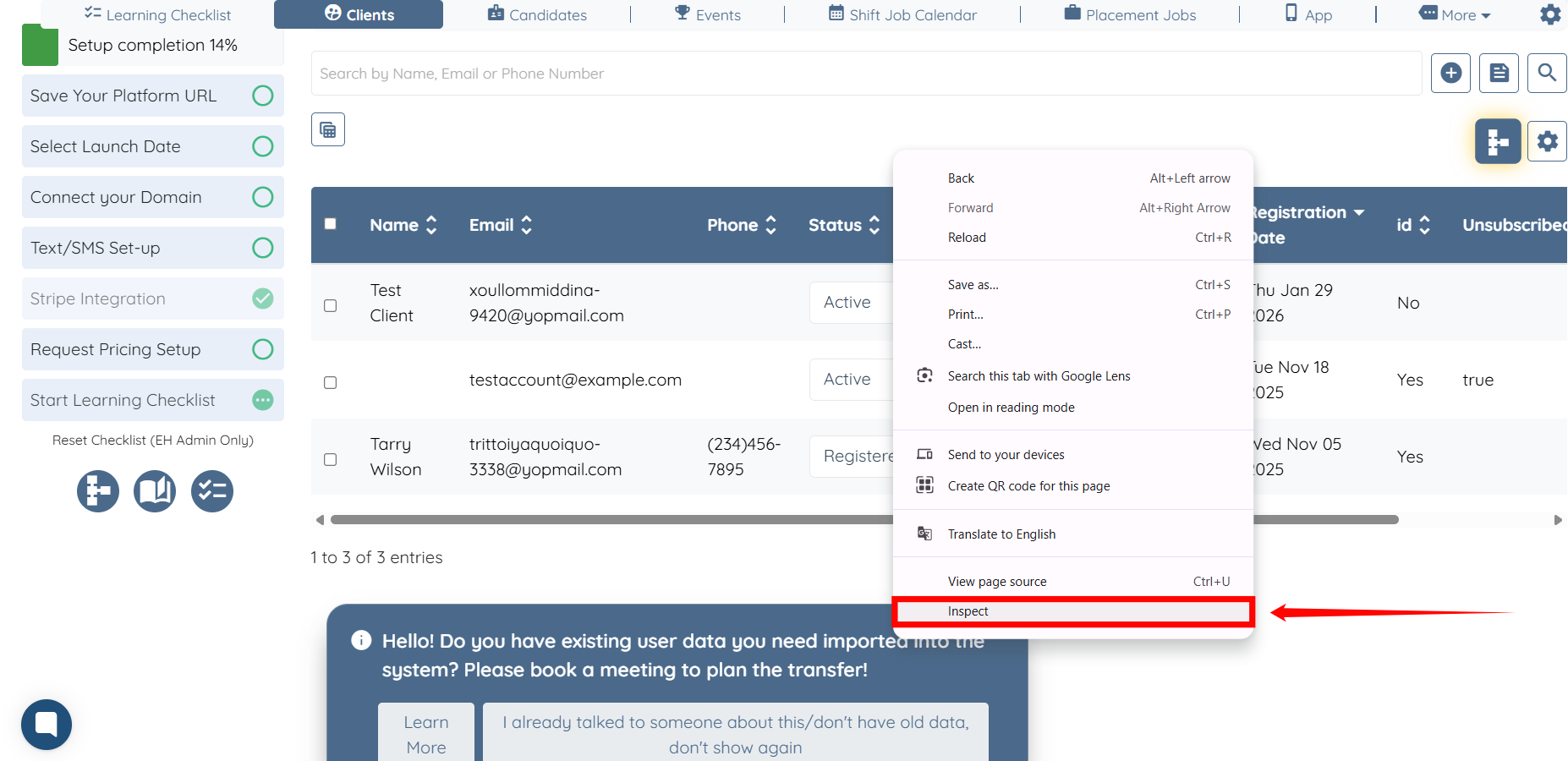
Step 1: On your agent dashboard, right-click anywhere on the page and select the Inspect option to open the developer tools.
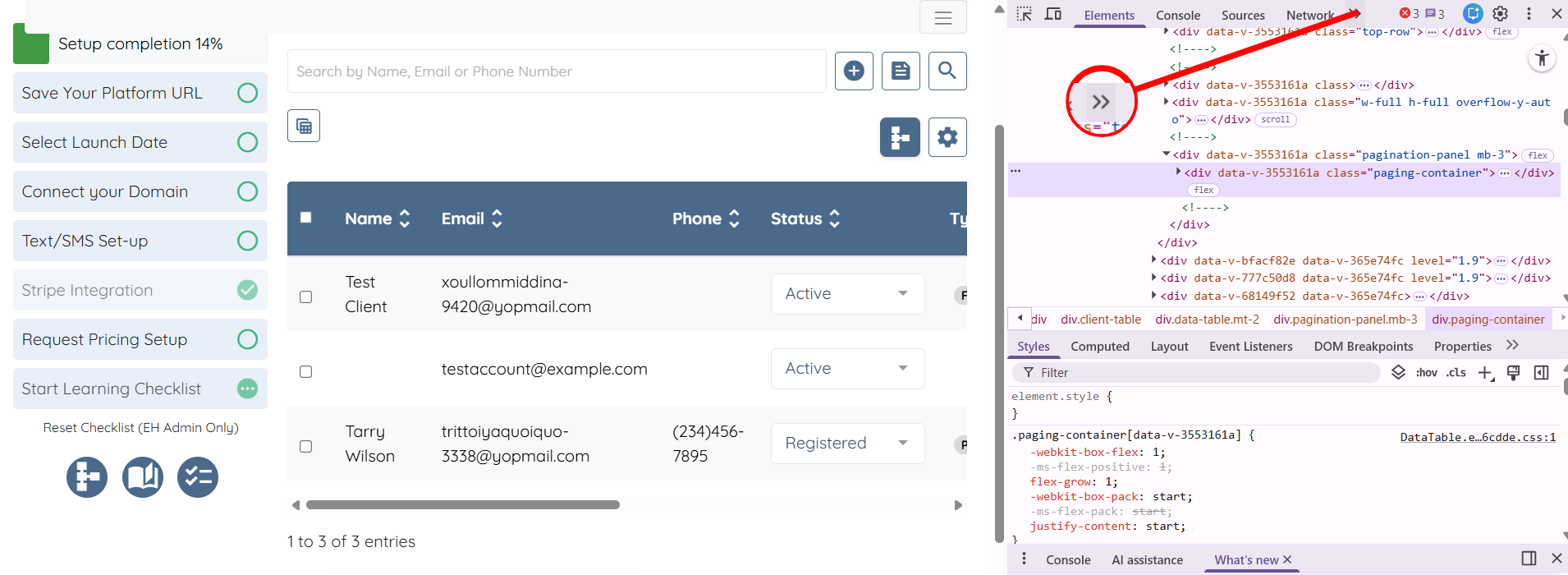
Step 2: Click the icon shown in the screenshot below to open additional tabs.
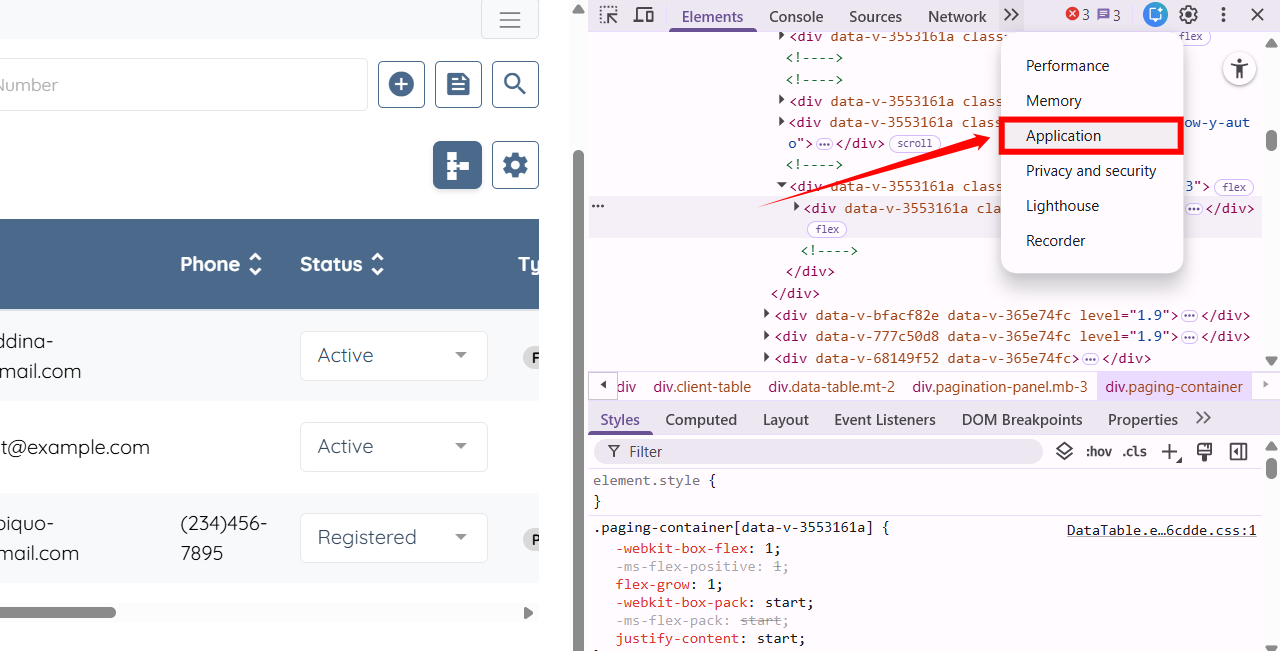
Step 3: Choose the Application option from the displayed list.
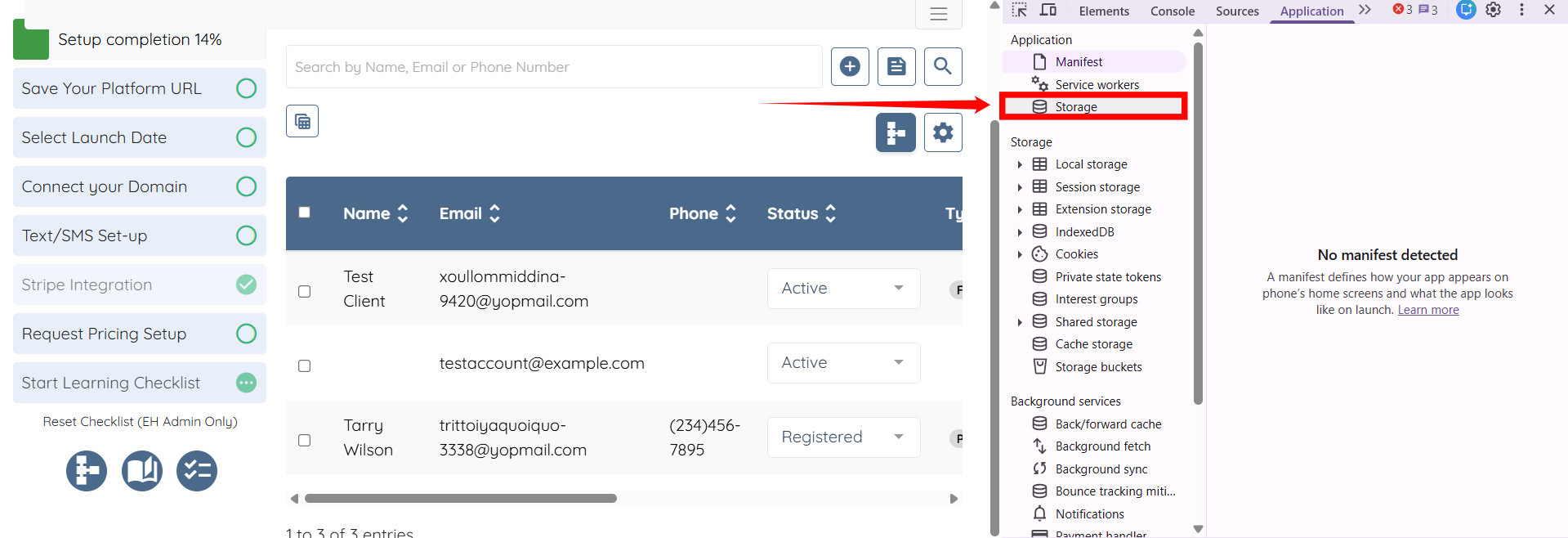
Step 4: Click the Storage option.
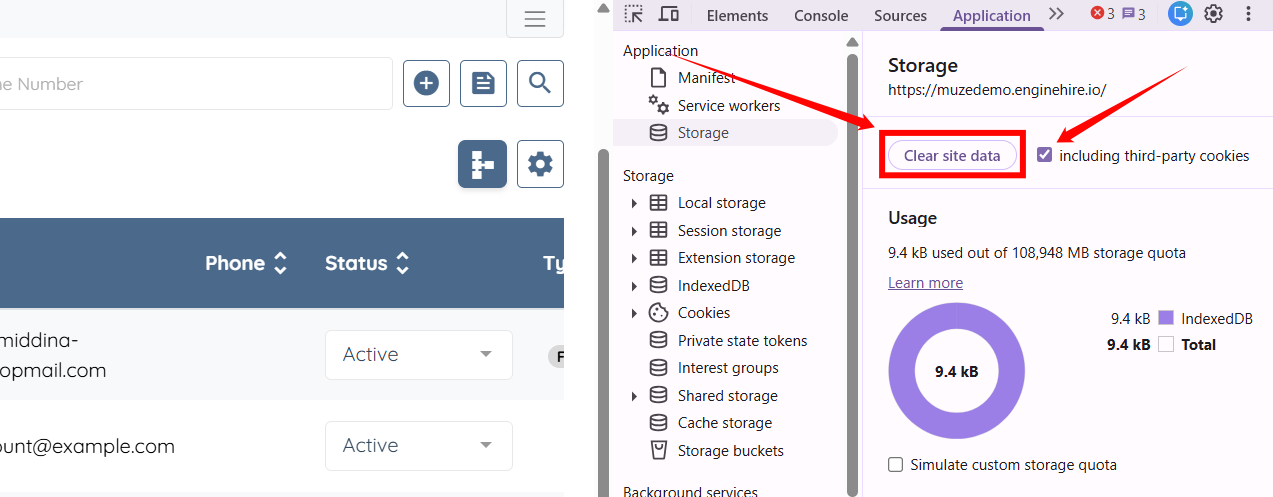
Step 5: Check the including third-party cookies checkbox, and then click the Clear site data button.
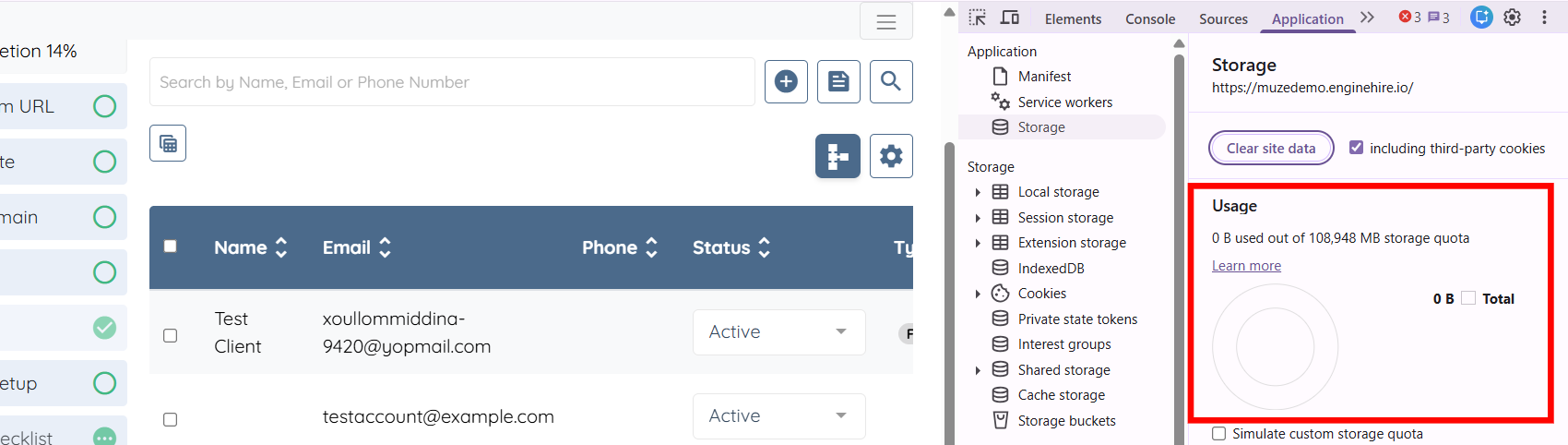
Step 6: The site data will be cleared successfully. Please reload the page you are currently on.
Step 7: Click the Login button to log back in to your agent dashboard.
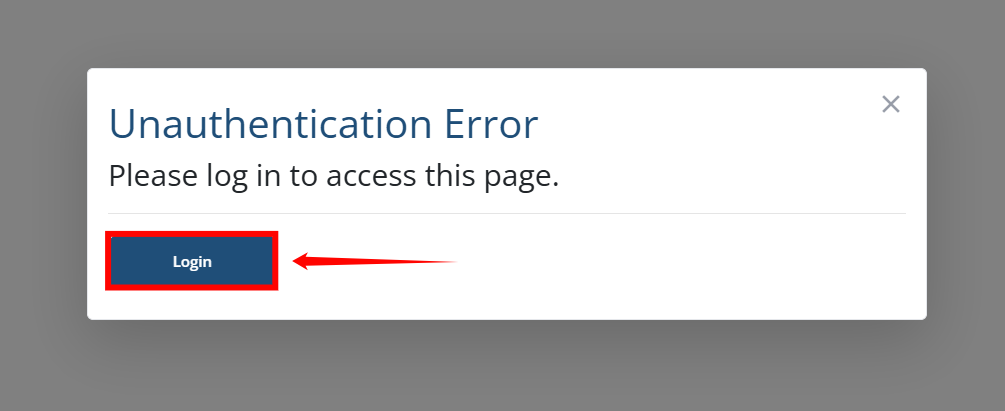
You will successfully log in to your agent dashboard.
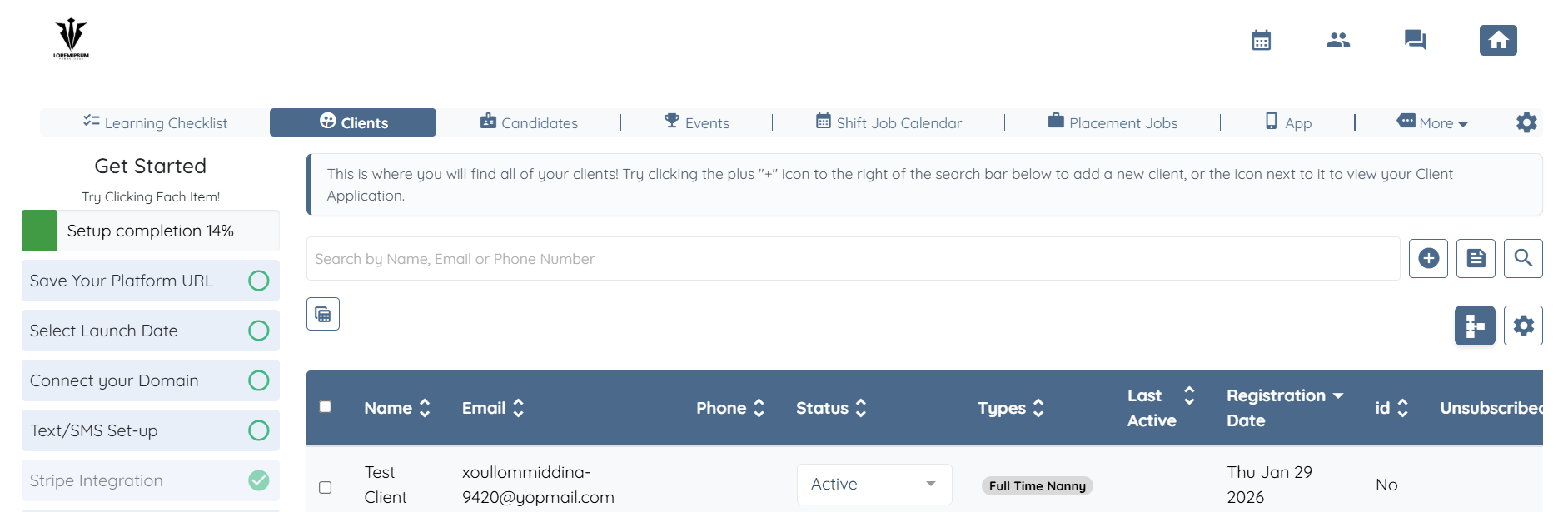
Clear your browser’s cache completely to remove all stored data, including cached files from every website you have visited.
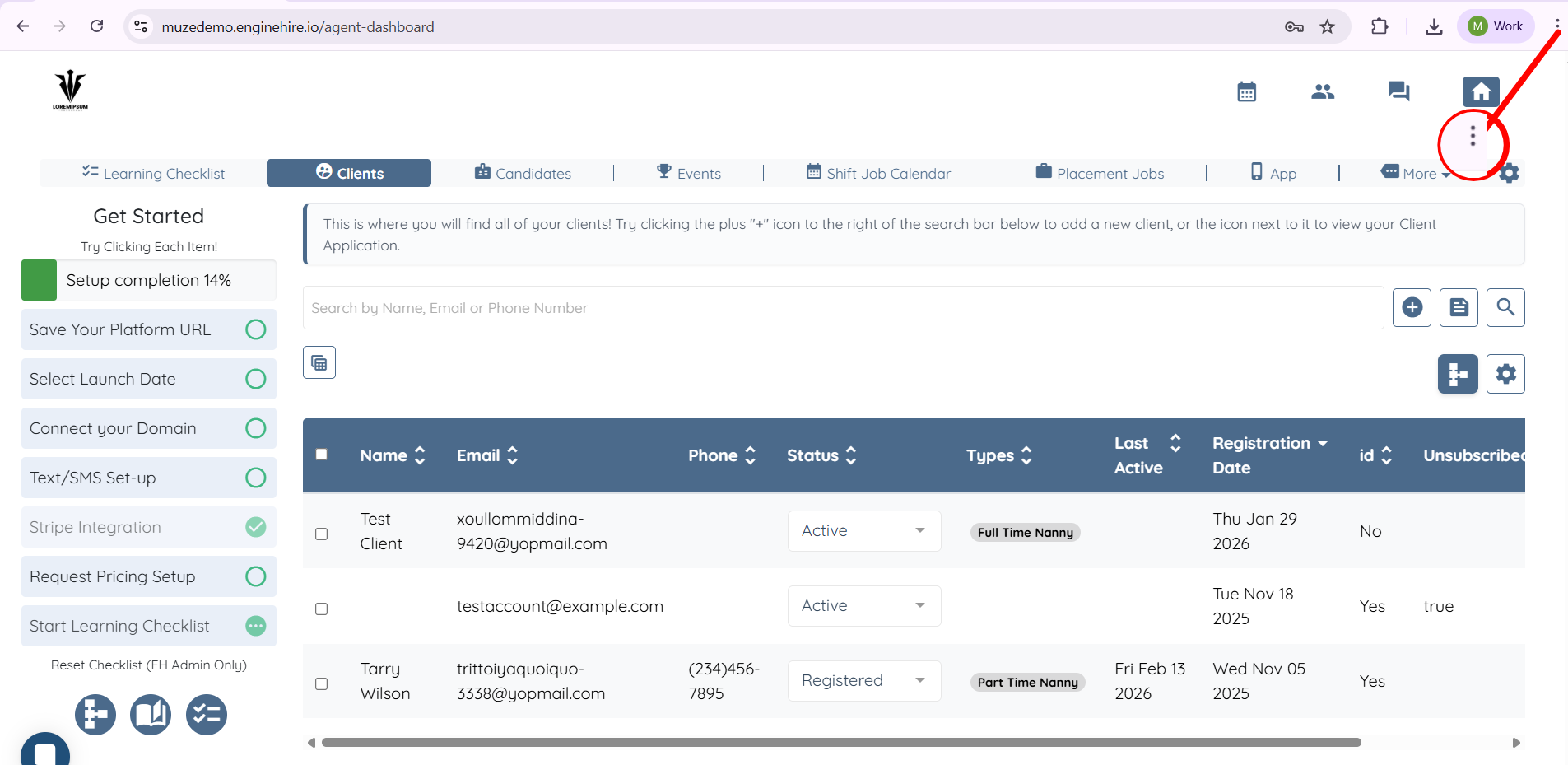
Step 1: Click the three-dot icon located in the top-right corner of your browser.
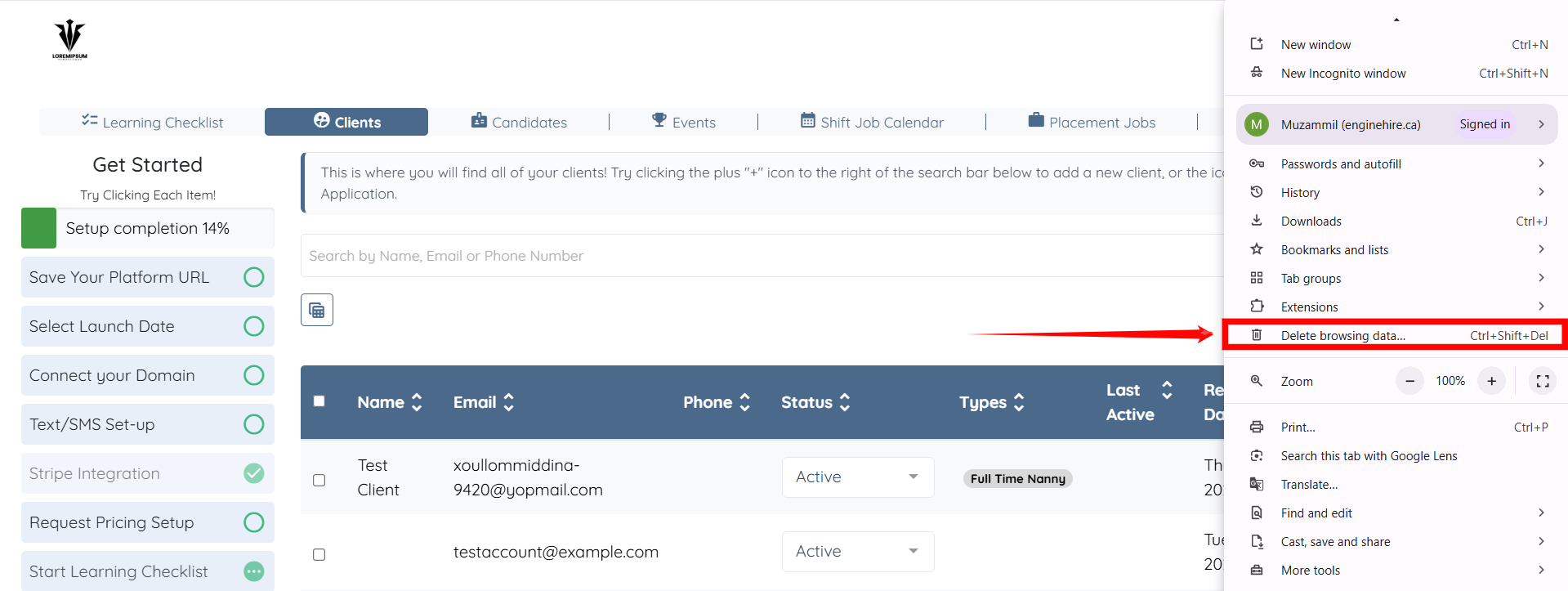
Step 2: Click the Delete browsing data… option.
Step 3: Click More > All time option.
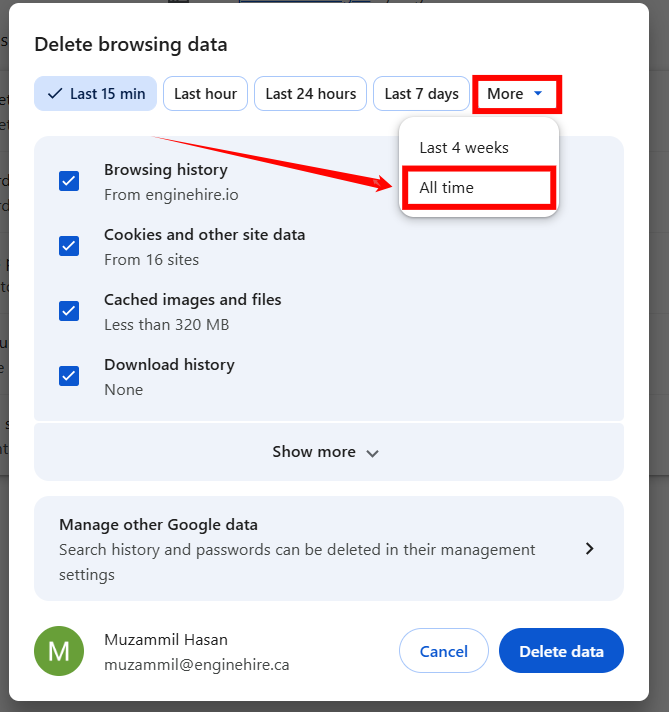
Step 4: Check only the Cookies and other site data and Cached images and files checkboxes. Then, click the Delete data button.