Let’s get started 🚀
Use either of the following ways to open and configure conditional rules.
Open the conditional settings directly from a candidate profile to configure response-based auto-assign rules.
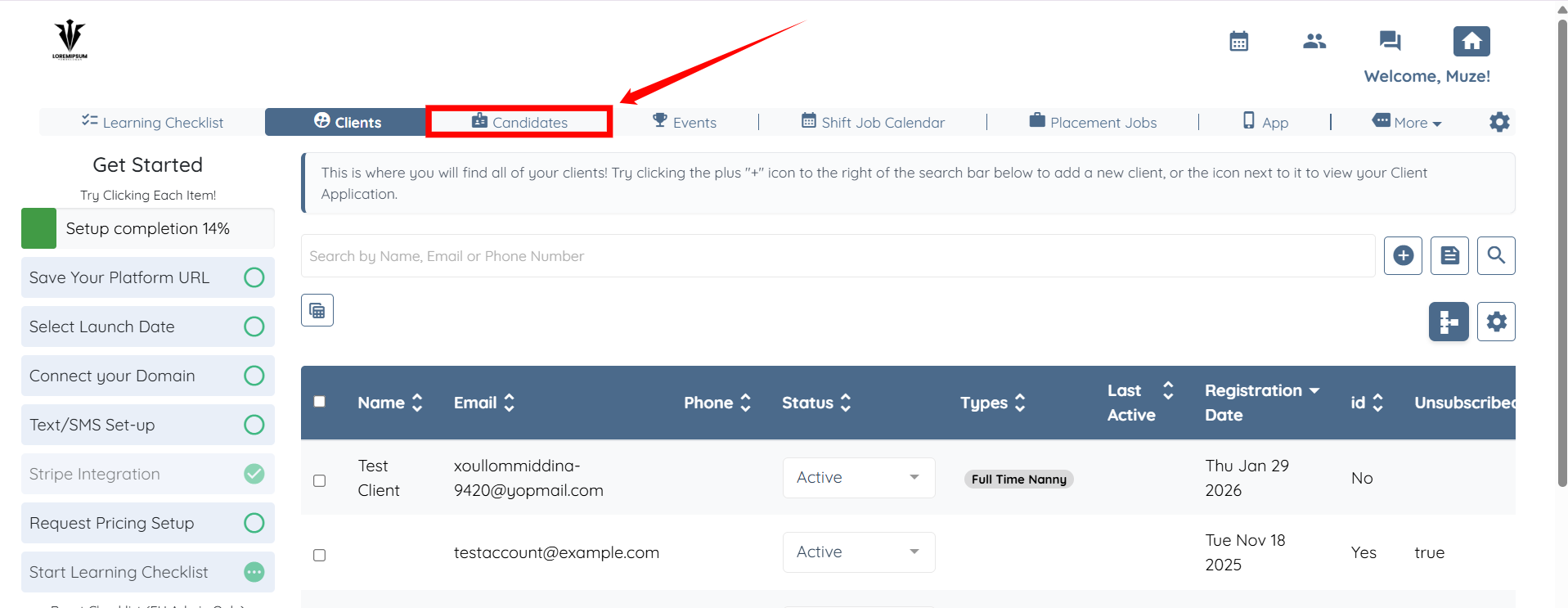
Step 1: Log in to your agent dashboard and click Candidates in the navigation bar.
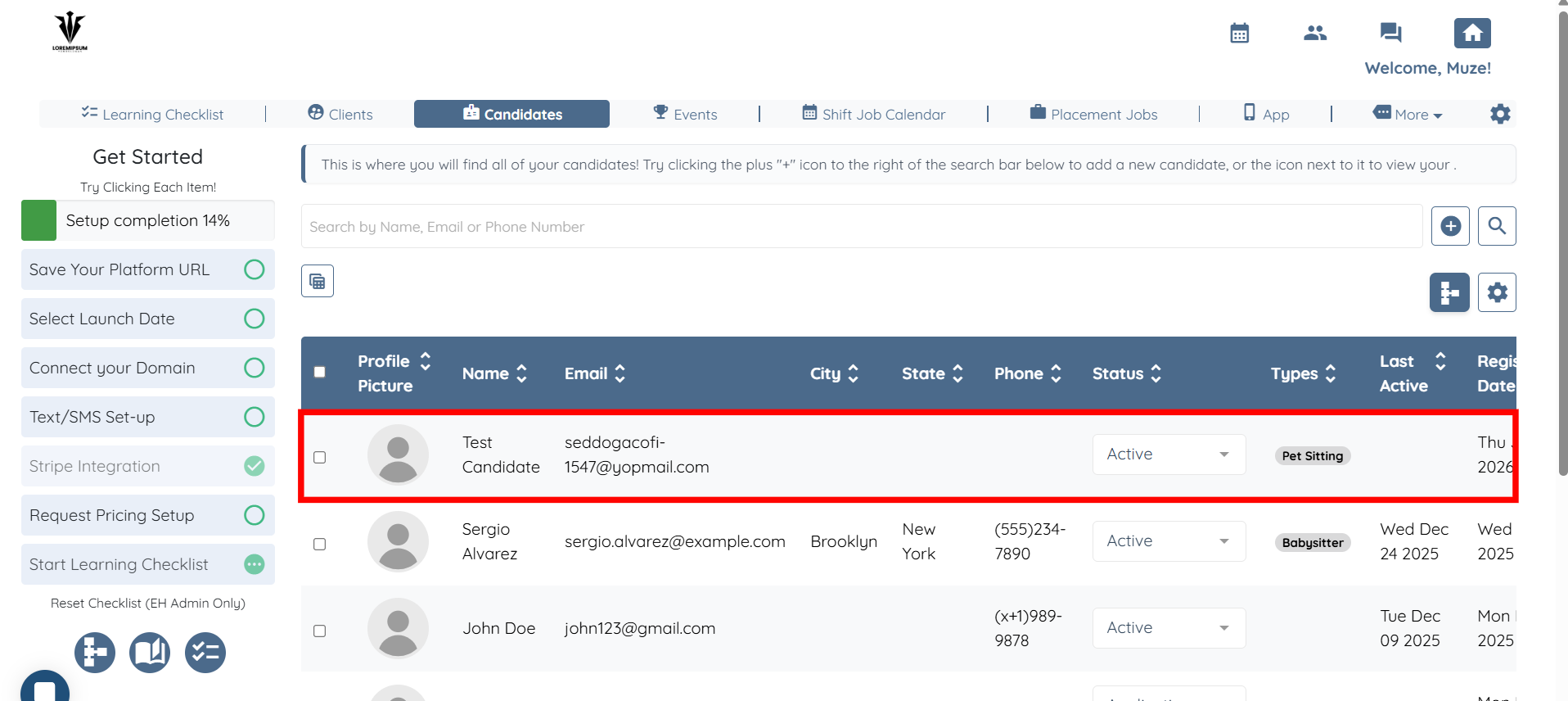
Step 2: Click on any candidate from the list.
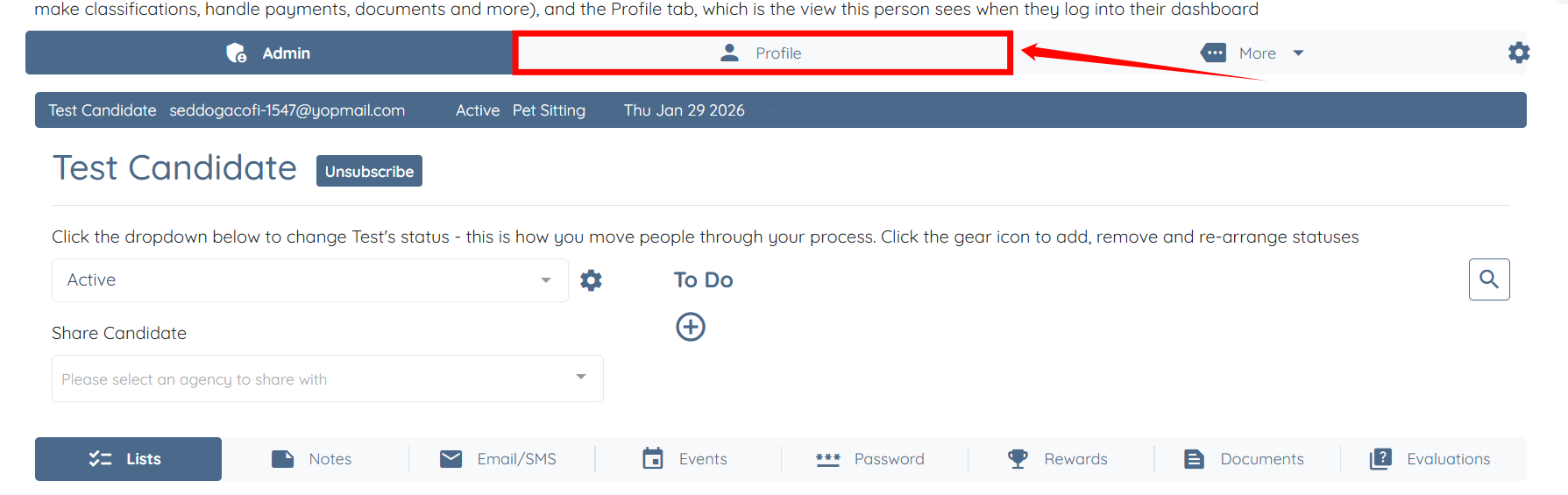
Step 3: Click the Profile tab to open the candidate’s profile.
Step 4: Scroll to the section that contains the question you want to link, then click the Gear icon in the section header.
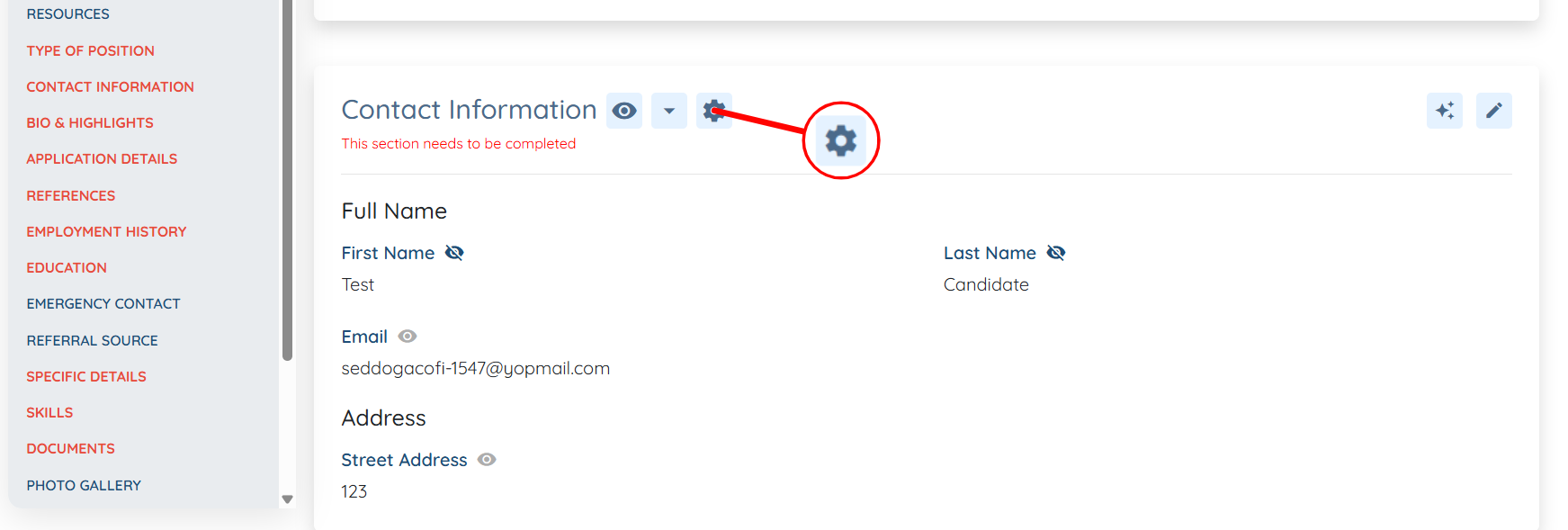
Step 5: Click the Edit Settings button.
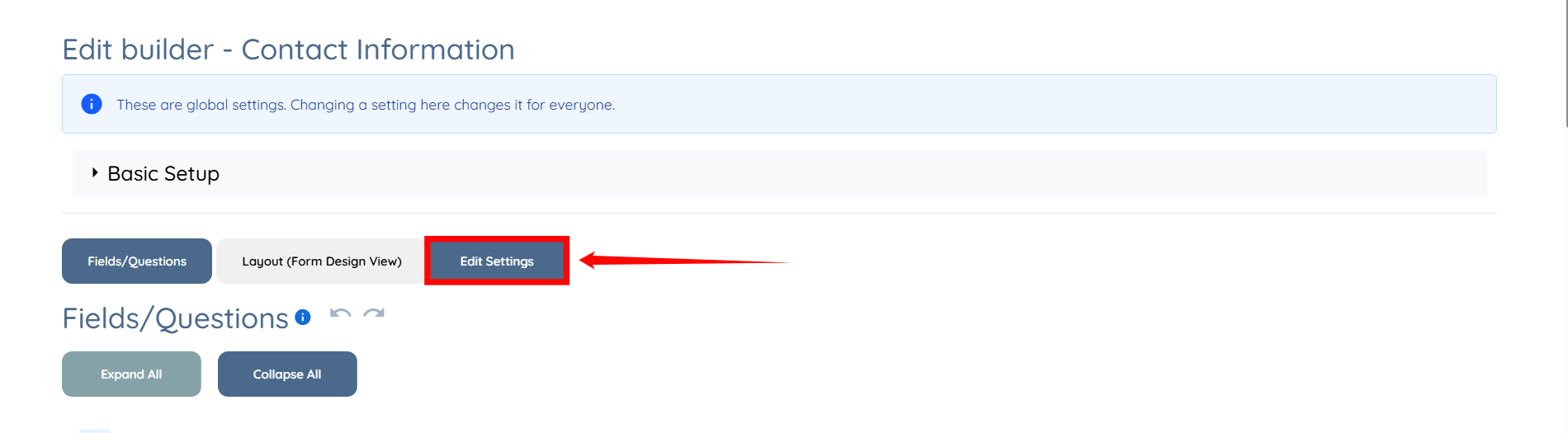
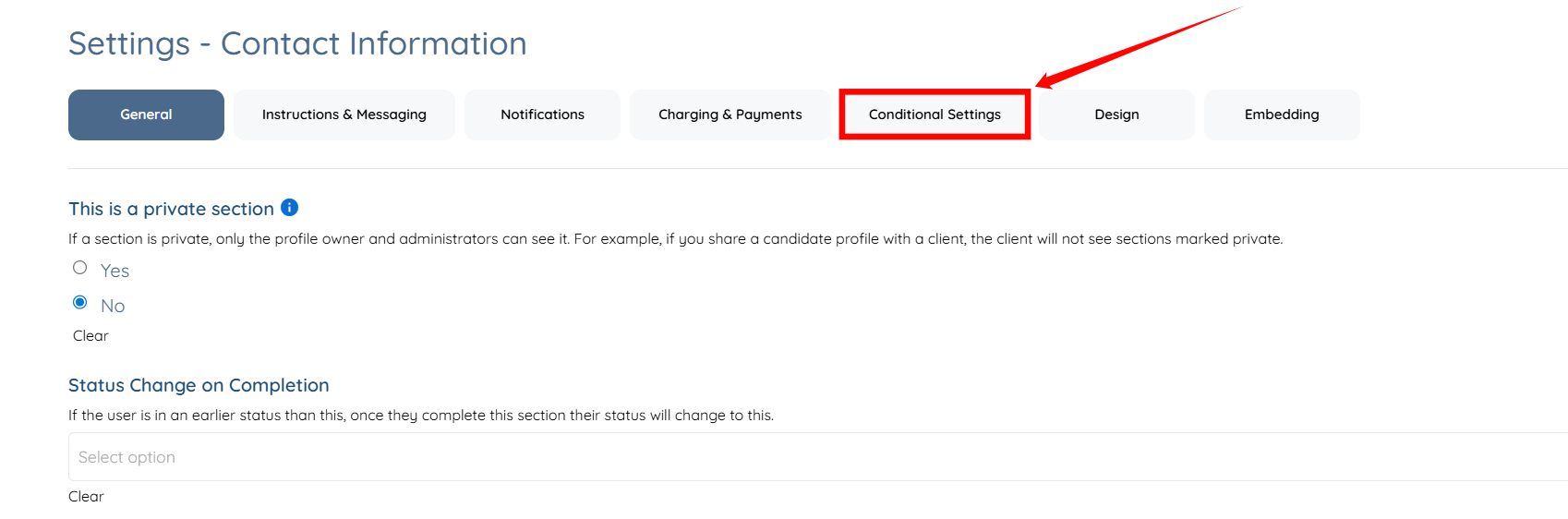
Step 6: Click the Conditional Settings tab to access the available conditional settings.
Access the conditional settings from the Application & Profile Builder to configure response-based auto-assign rules.
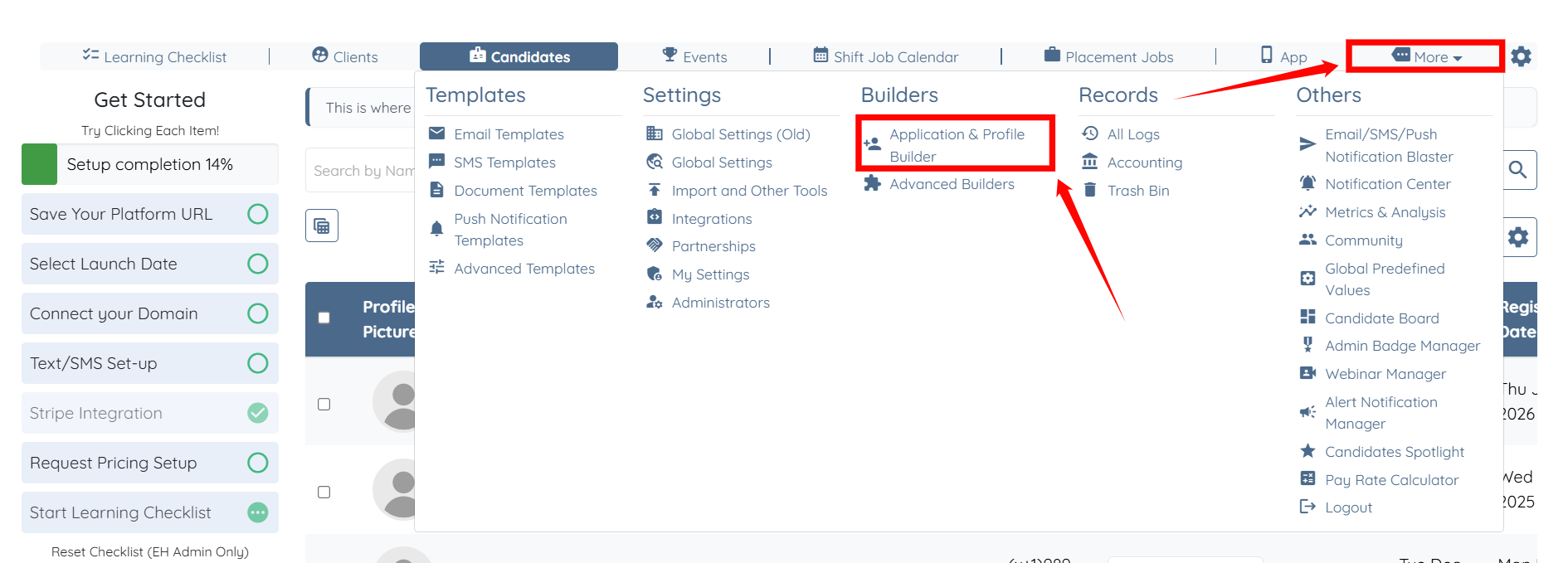
Step 1: On your agent dashboard, click More > Application & Profile Builder, as shown in the screenshot below.
Step 2: Scroll to the section that contains the question you want to link, then click the corresponding Gear icon.
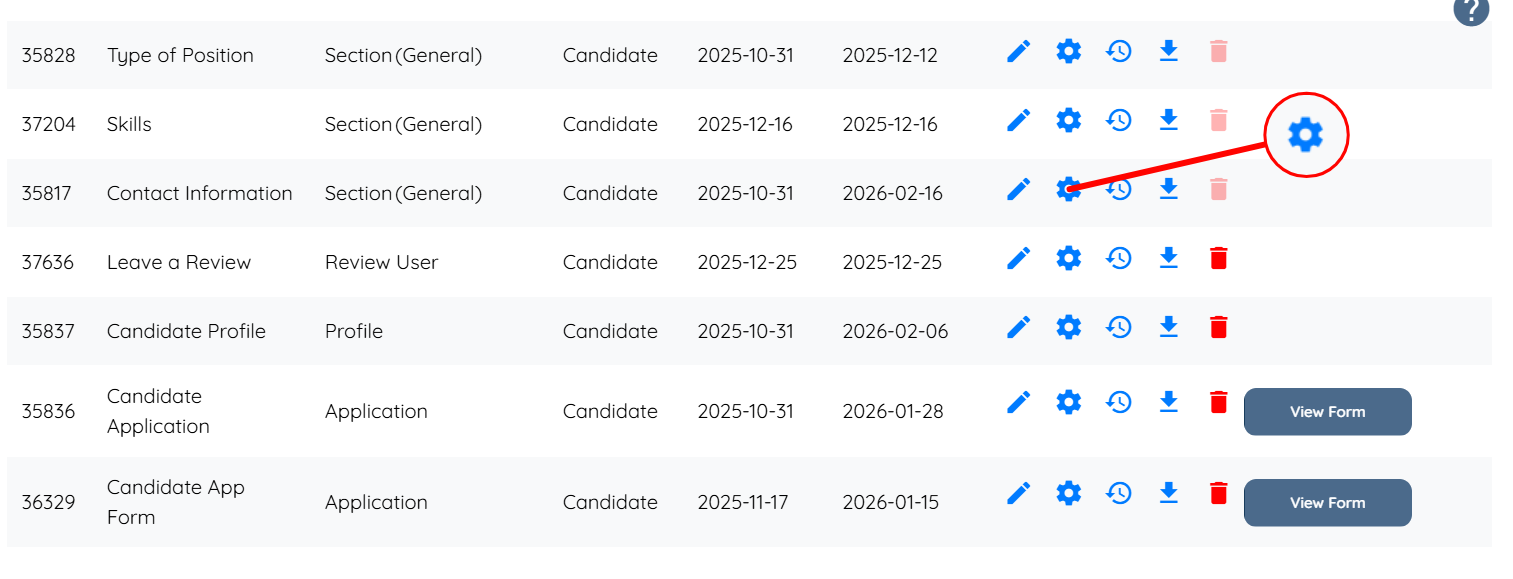
Step 3: Click the Conditional Settings tab to access the available conditional settings.
Define the condition that will trigger the automatic assignment based on a user’s response to a specific question.
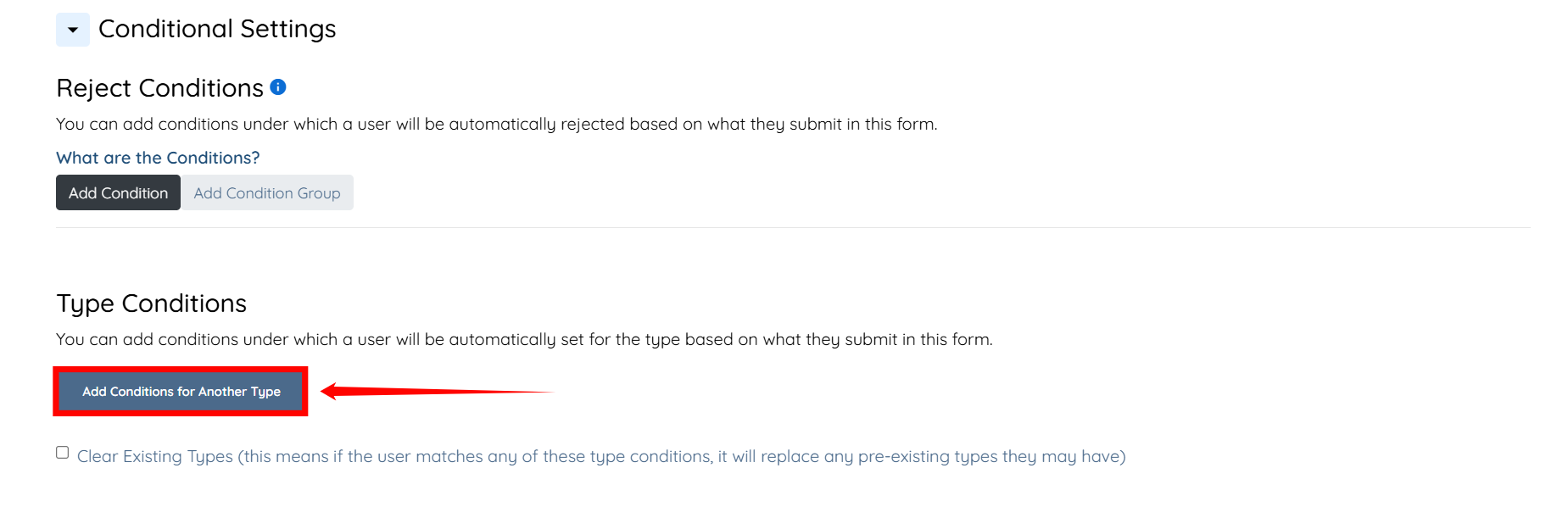
Step 1: Under the Type Conditions heading, click the Add Conditions for Another Type button to begin adding the condition.
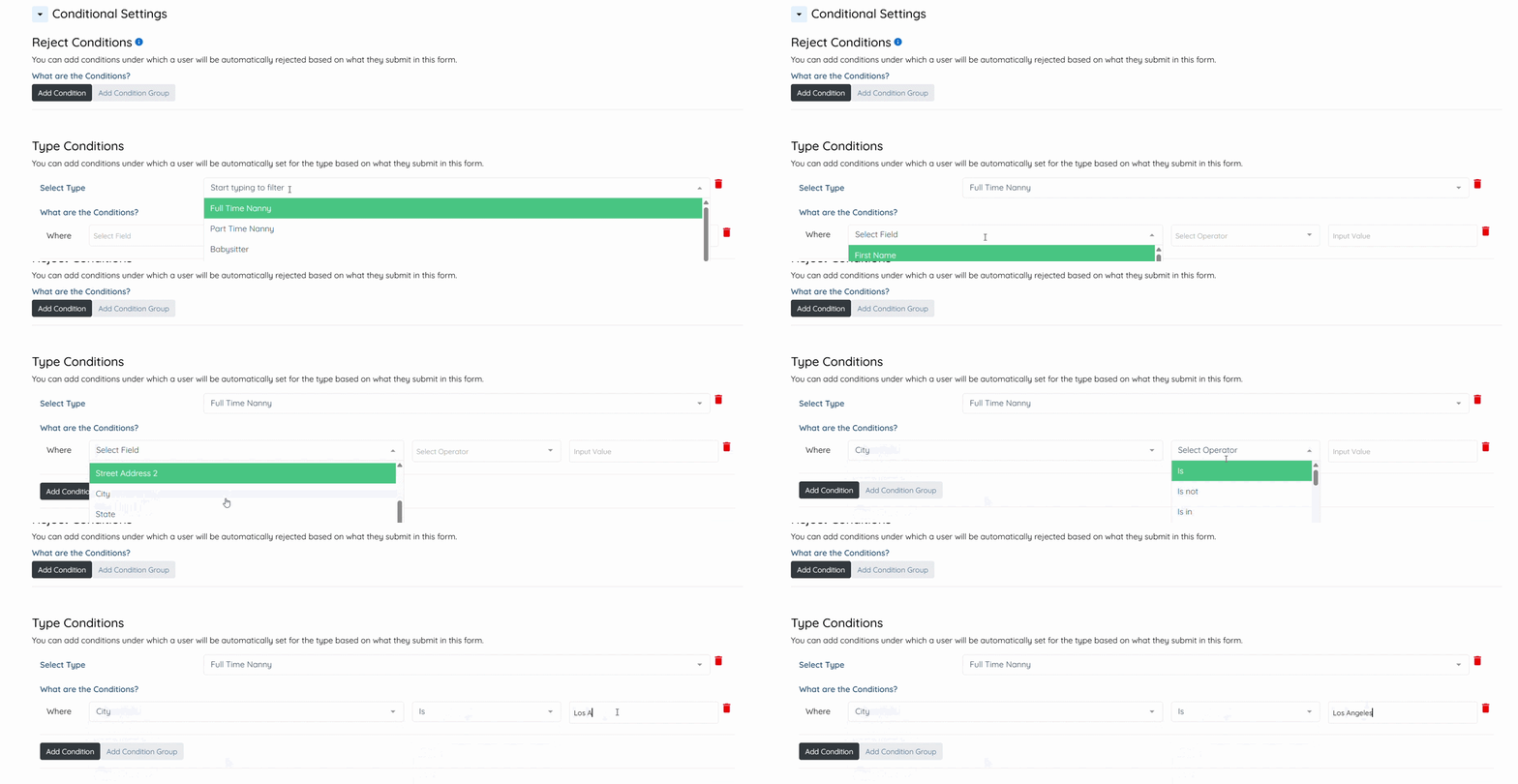
Step 2: Enter the type you want to set automatically, then select the question or field that will trigger the selected type based on the input value you set.
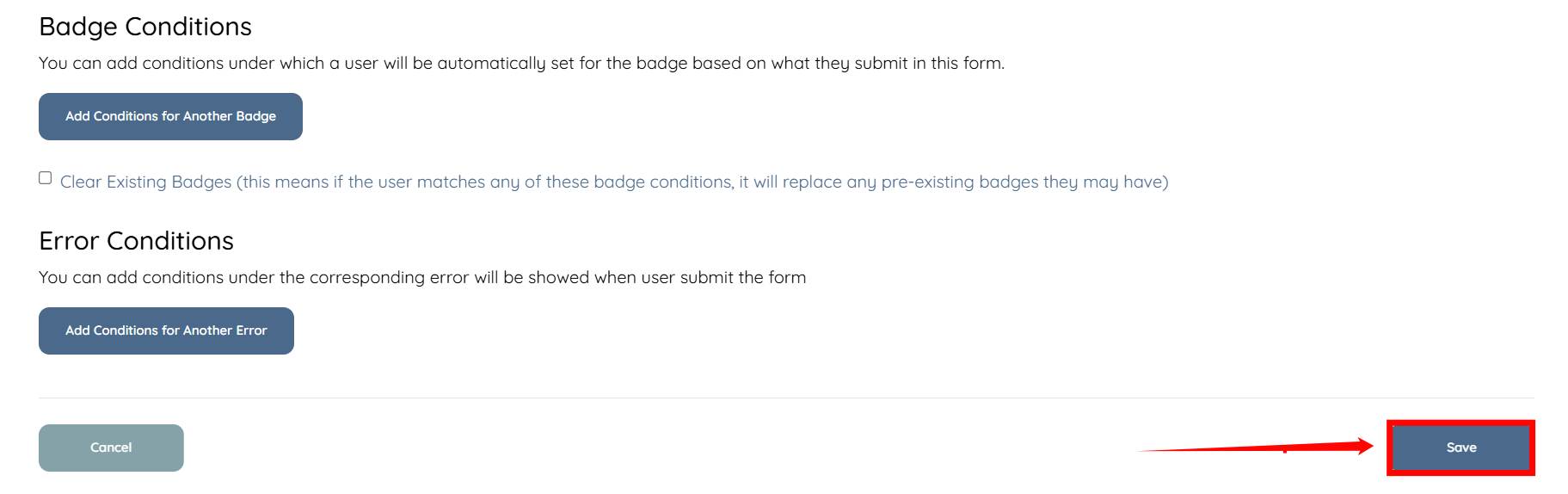
Step 3: Scroll down and click the Save button to confirm the changes.
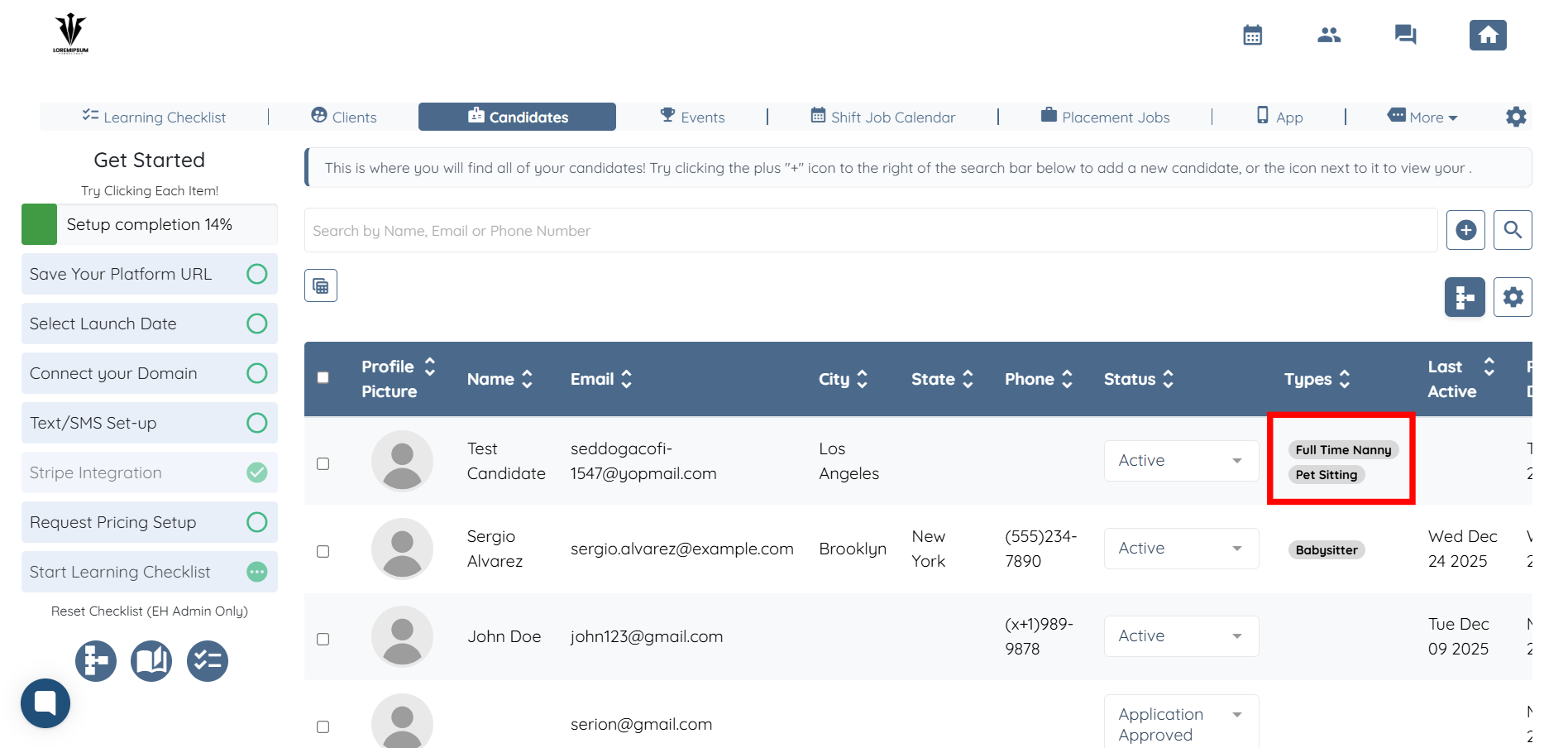
Now, whenever a candidate enters “Los Angeles” as their city, the system will automatically add the “Full Time Nanny” type to that candidate’s profile.
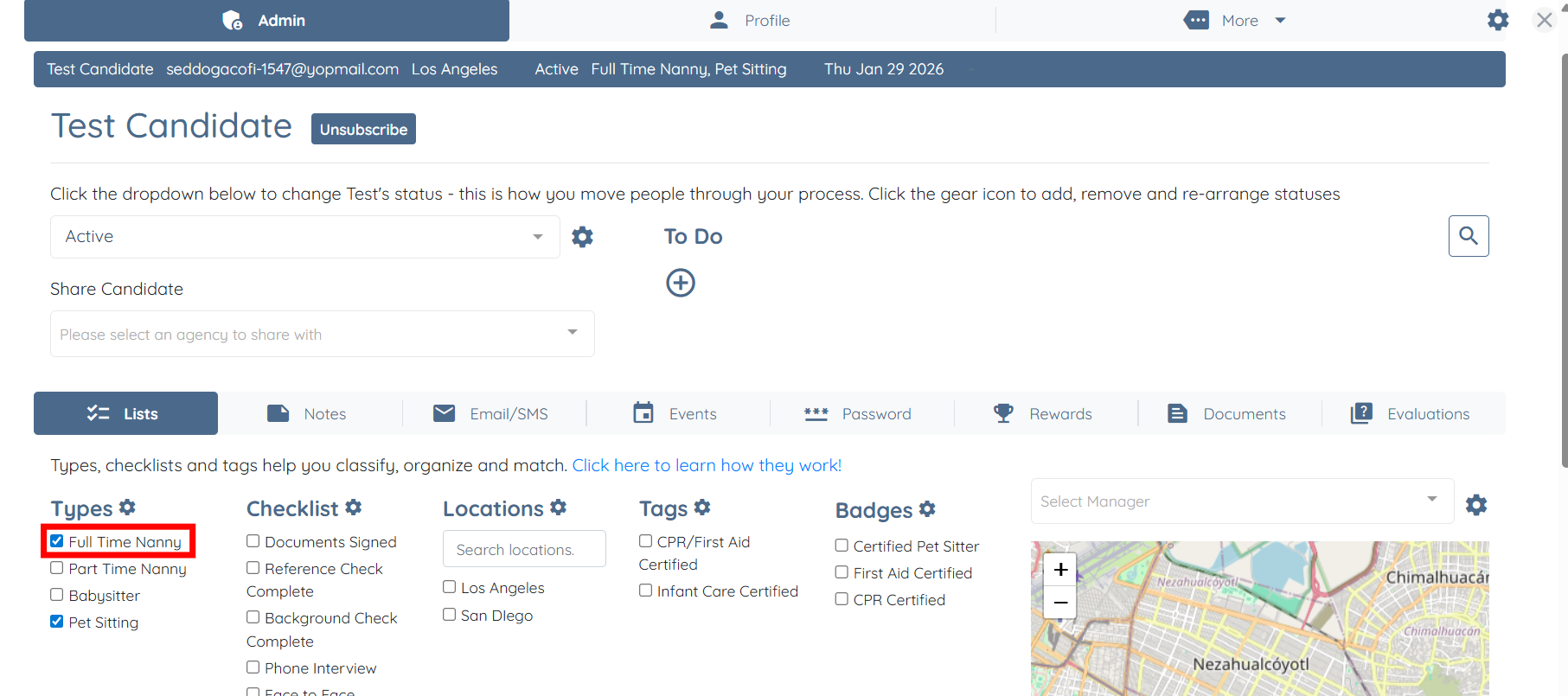
You can also view this updated type in the candidate table.