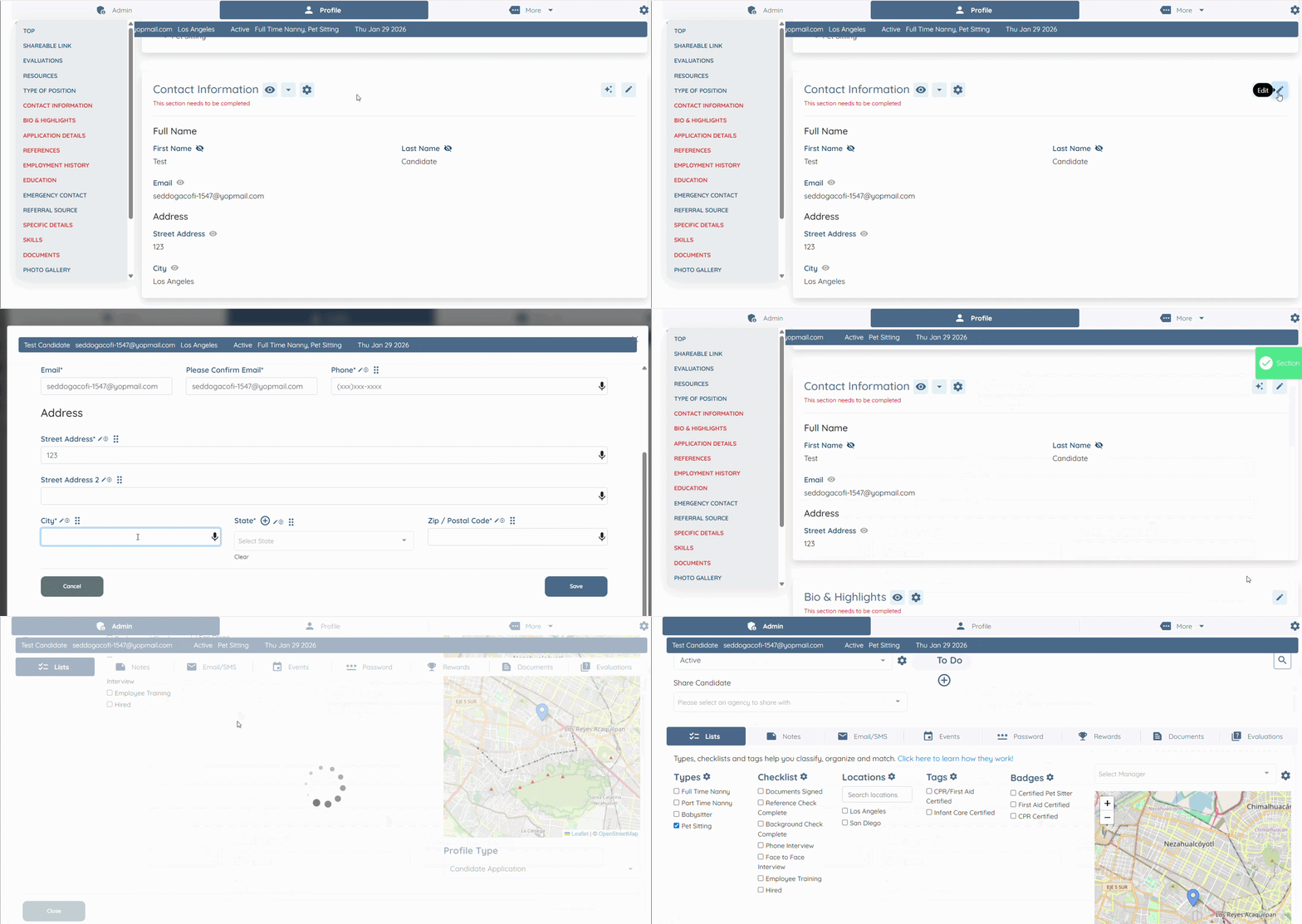
Let’s get started 🚀
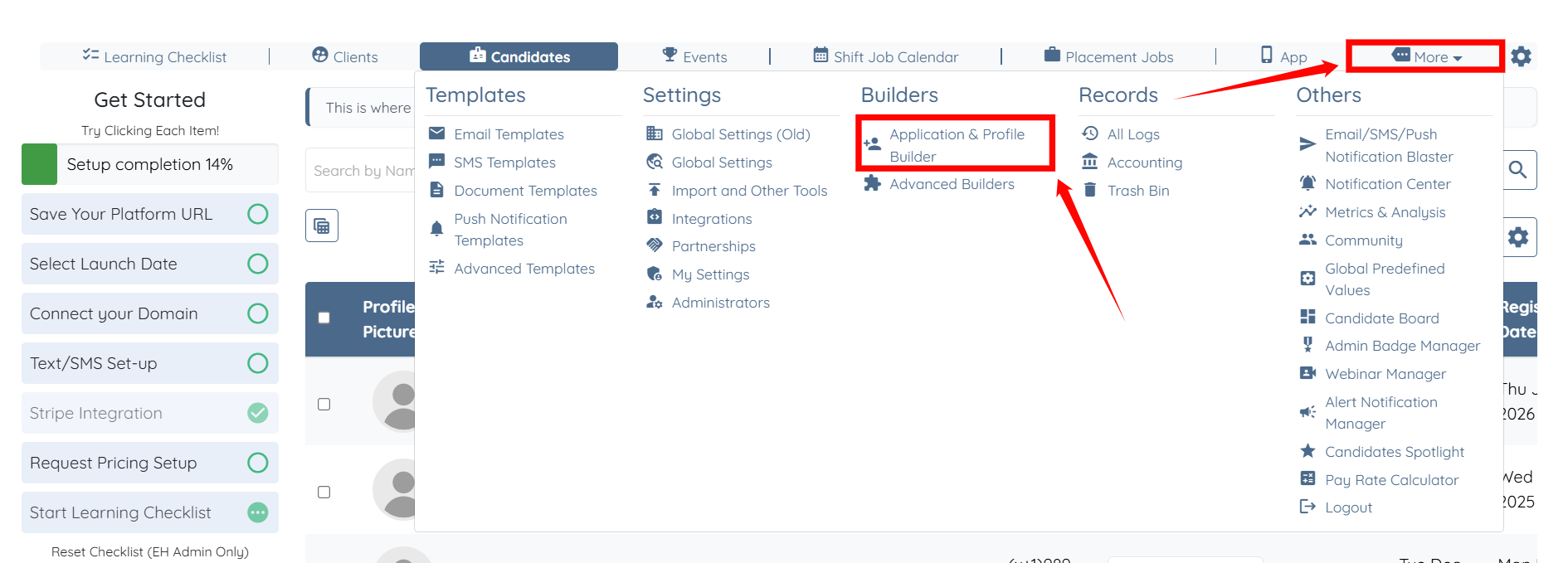
Step 1: On your agent dashboard, click More > Application & Profile Builder, as shown in the screenshot below.
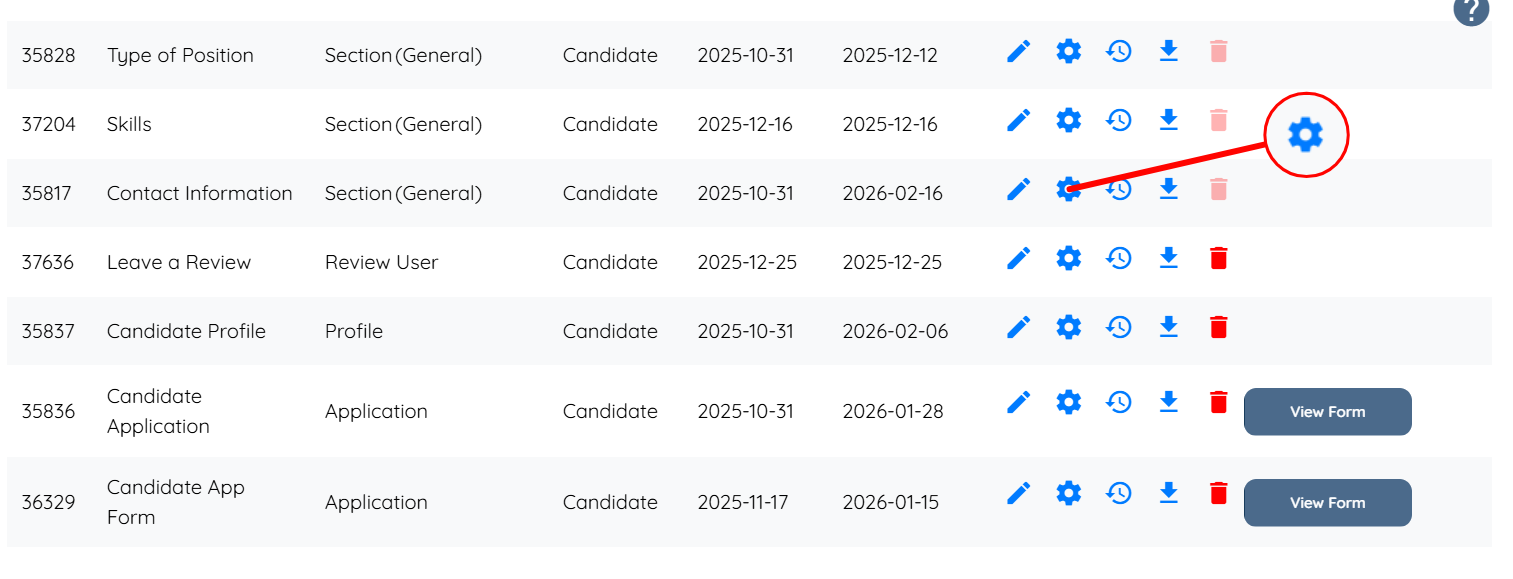
Step 2: Scroll to the section where you want to configure the auto-remove profile attributes settings, then click the corresponding Gear icon.
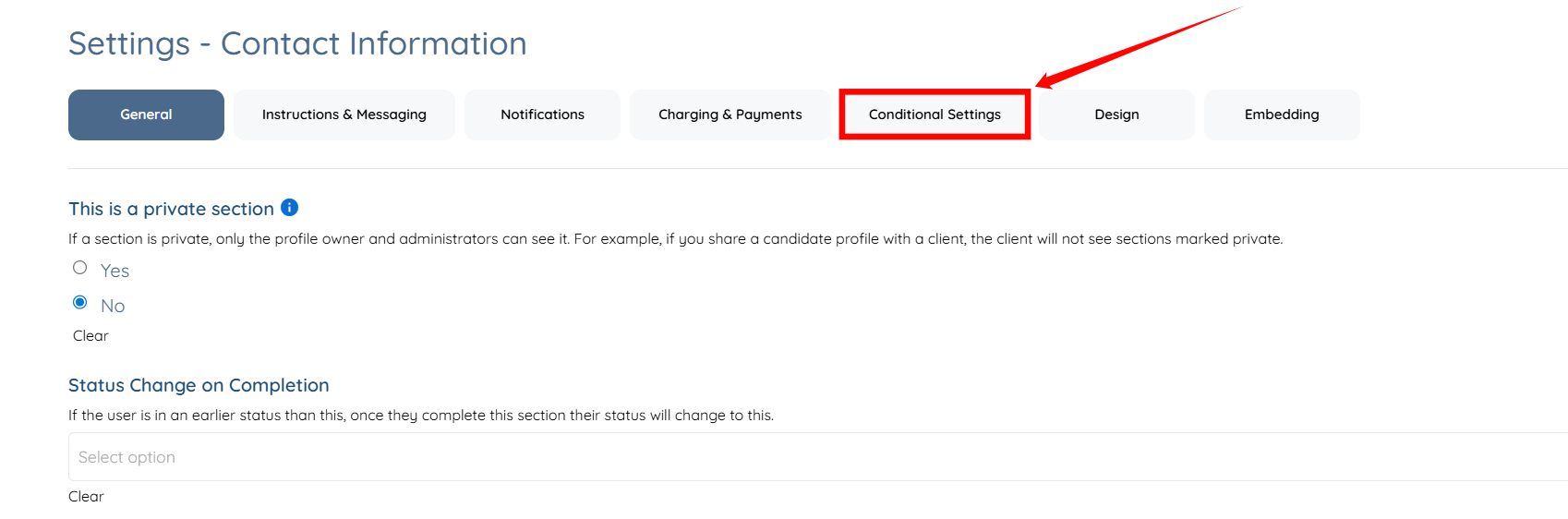
Step 3: Click the Conditional Settings tab to access the available conditional settings.
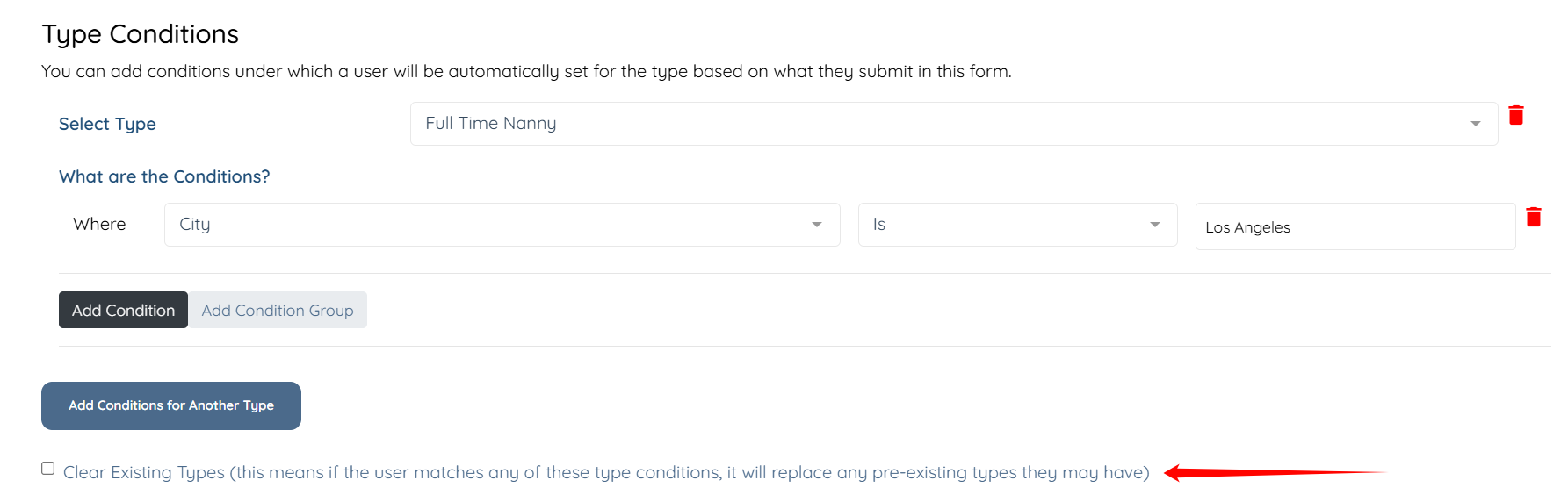
Step 4: Scroll to the conditional setting where you want to configure the auto-remove profile attributes configuration.
Then, check the Clear Existing Types (this means if the user matches any of these type conditions, it will replace any pre-existing types they may have) checkbox.
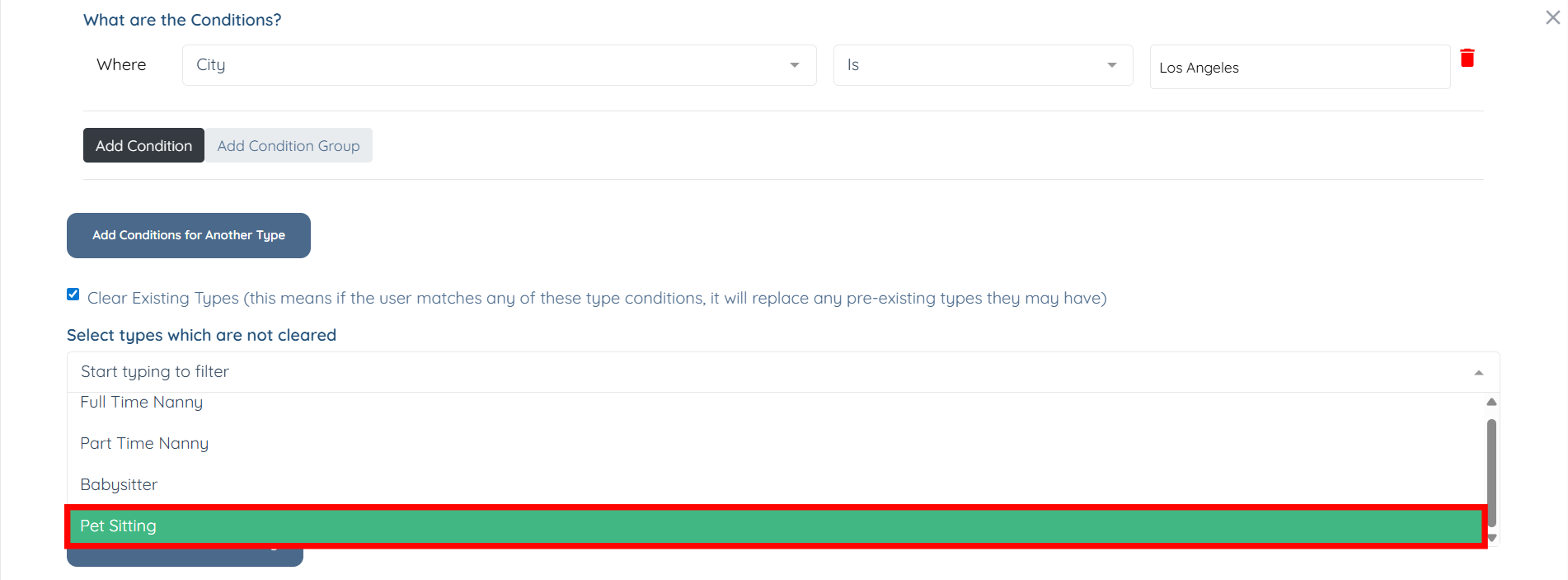
Step 5: Select the type that you want to exclude from automatic removal.
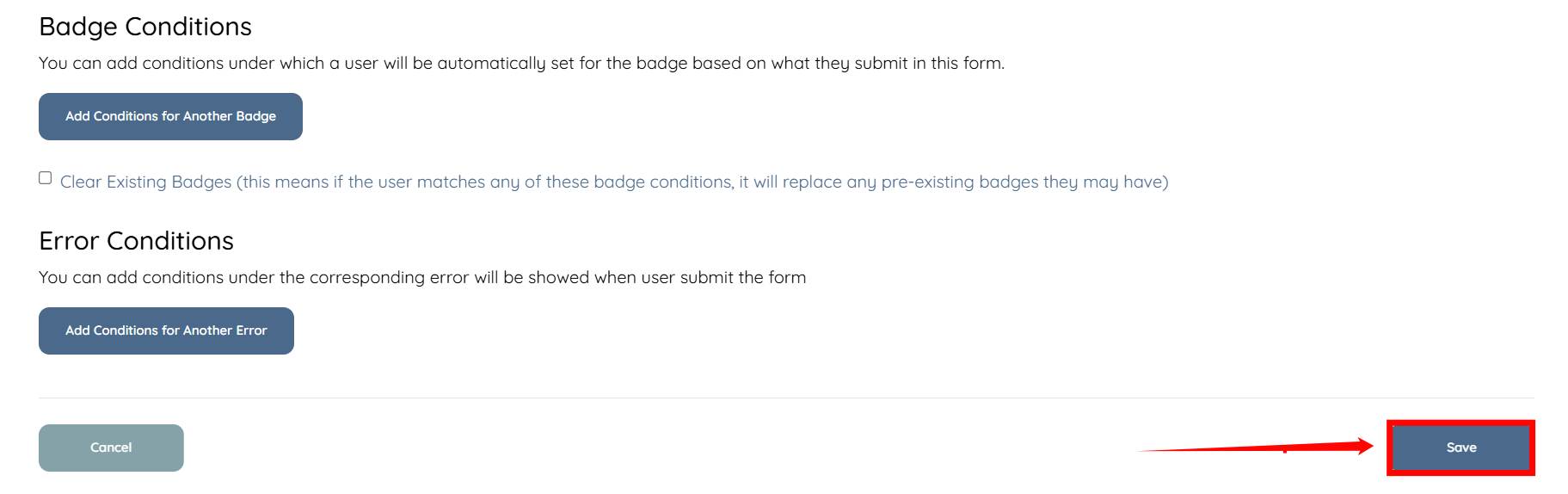
Step 6: Scroll down and click the Save button to confirm the changes.
Now, whenever a candidate changes their city to something other than Los Angeles or leaves it blank, the system will automatically remove the “Full Time Nanny” type from their profile, while ignoring the Pet Setting type since it is set to be excluded from auto-removal.