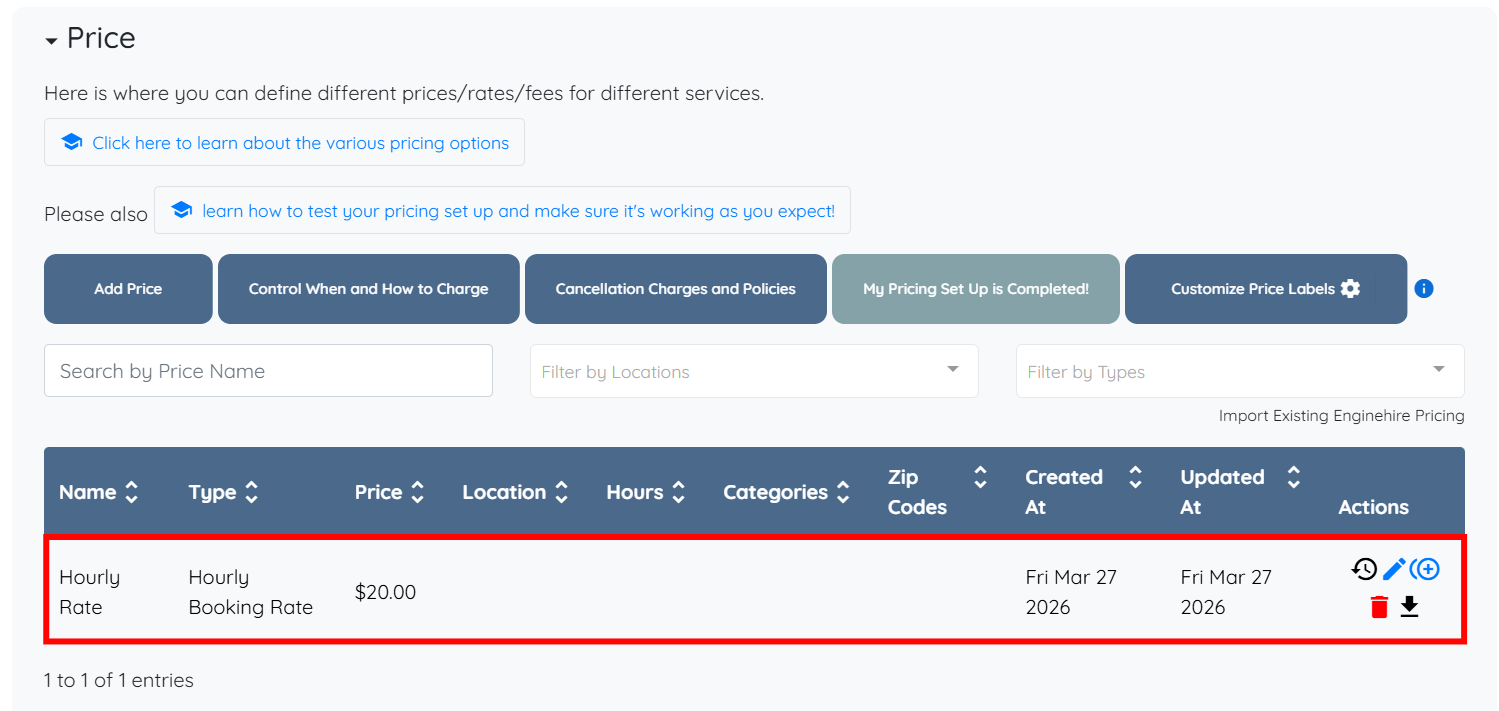
Let’s get started 🚀
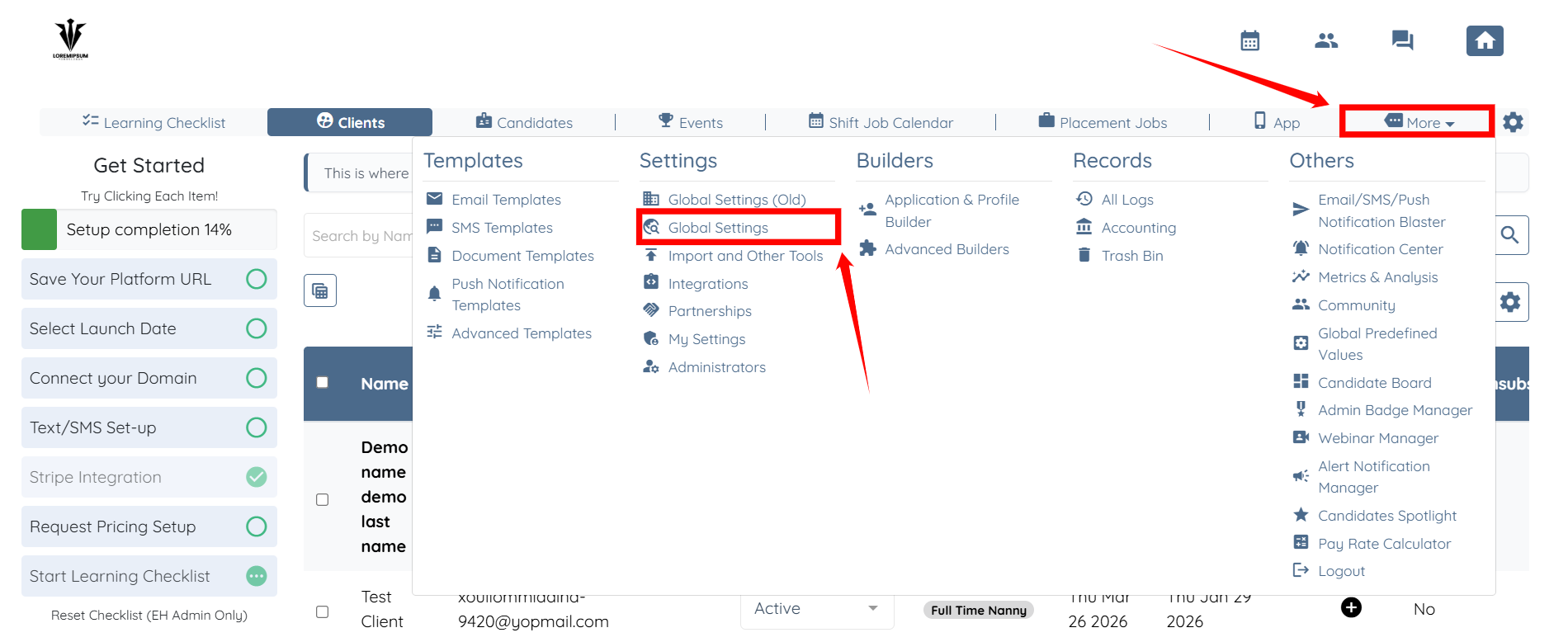
Step 1: Log in to your agent dashboard and click More > Global Settings as shown in the screenshot below.
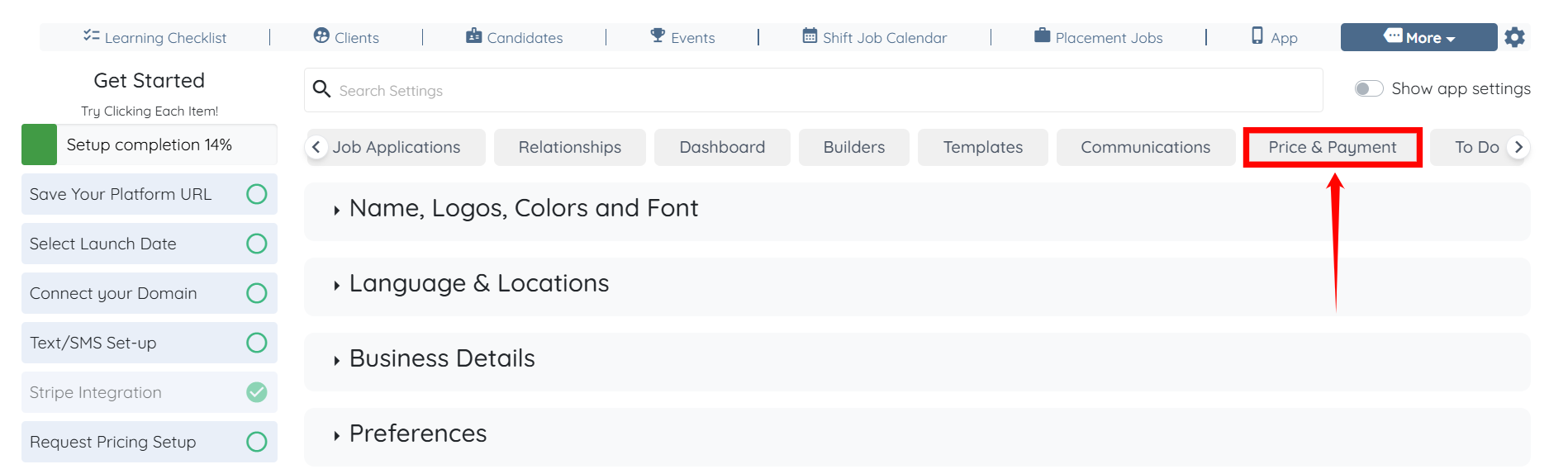
Step 2: From the available tabs, click the Price & Payment tab.
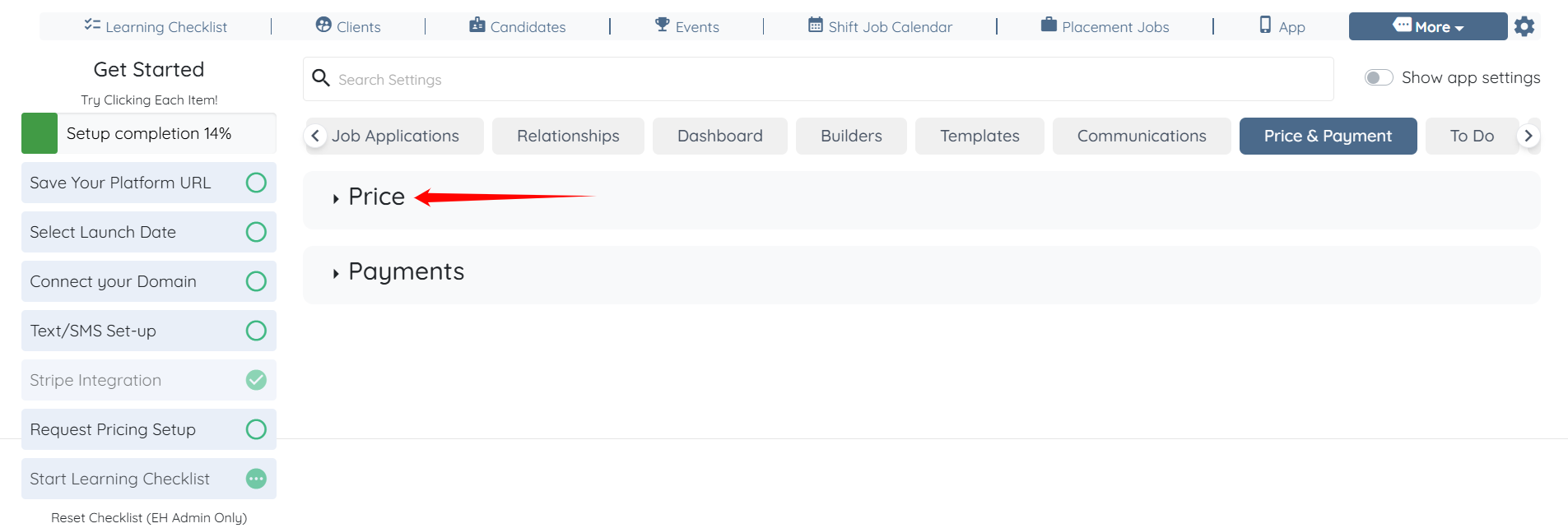
Step 3: Click the Price option to expand it and view the associated details.
Step 4: Click the Add Price button.
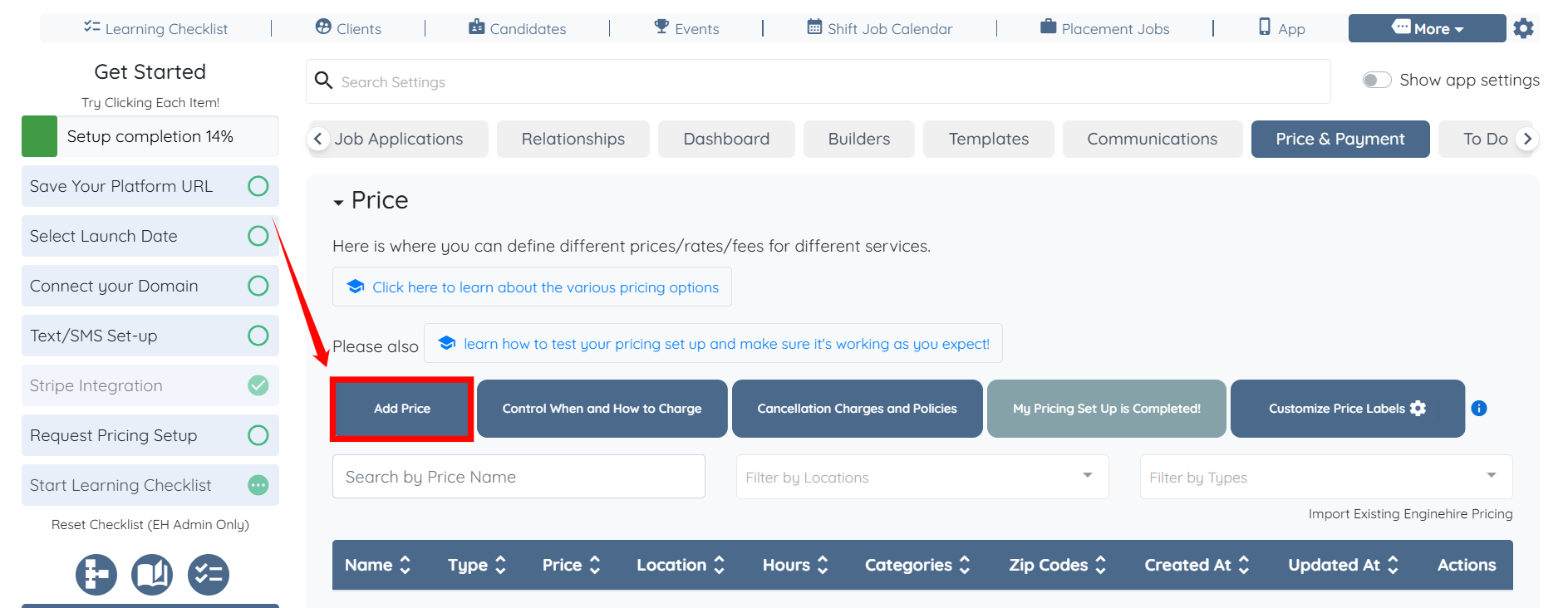
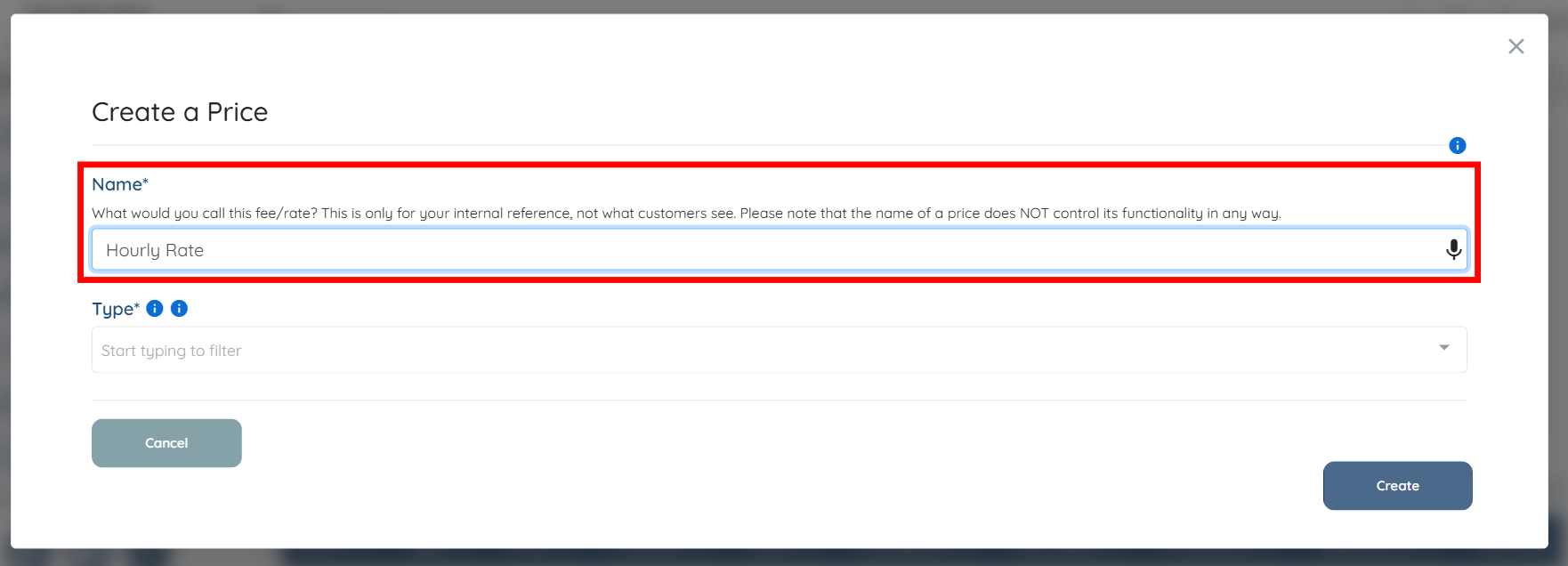
Step 5: Enter a name for the price.
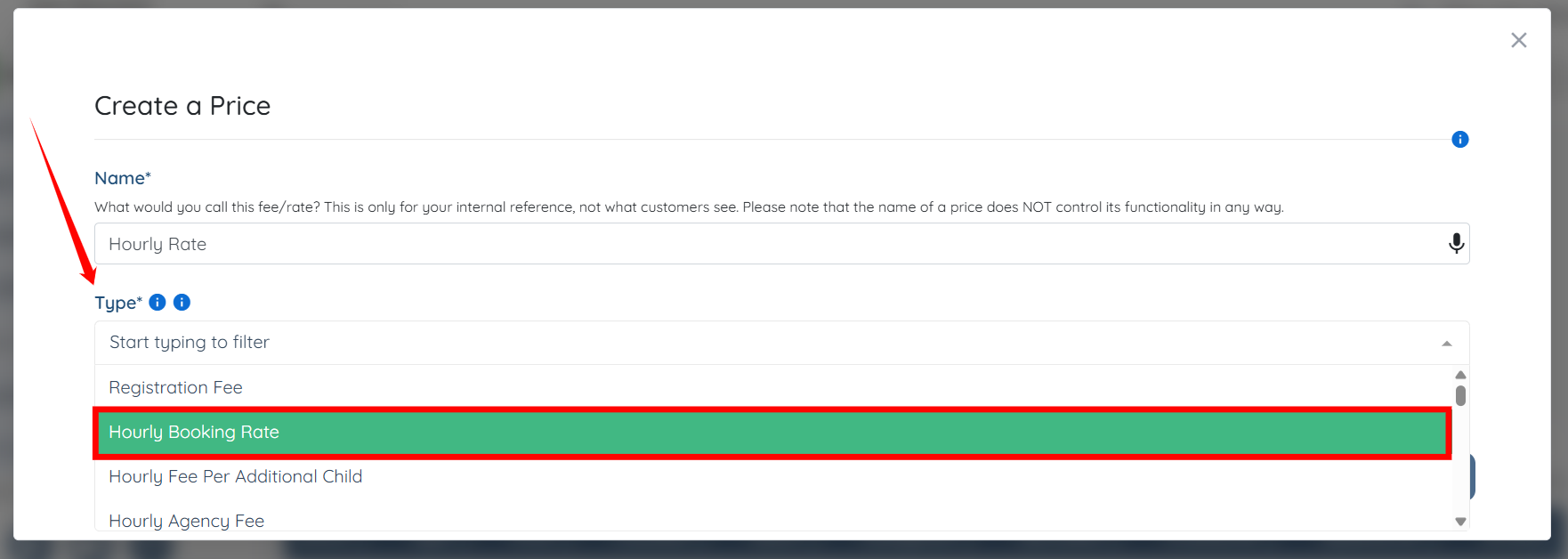
Step 6: In the Type field, select Hourly Booking Rate from the dropdown list.
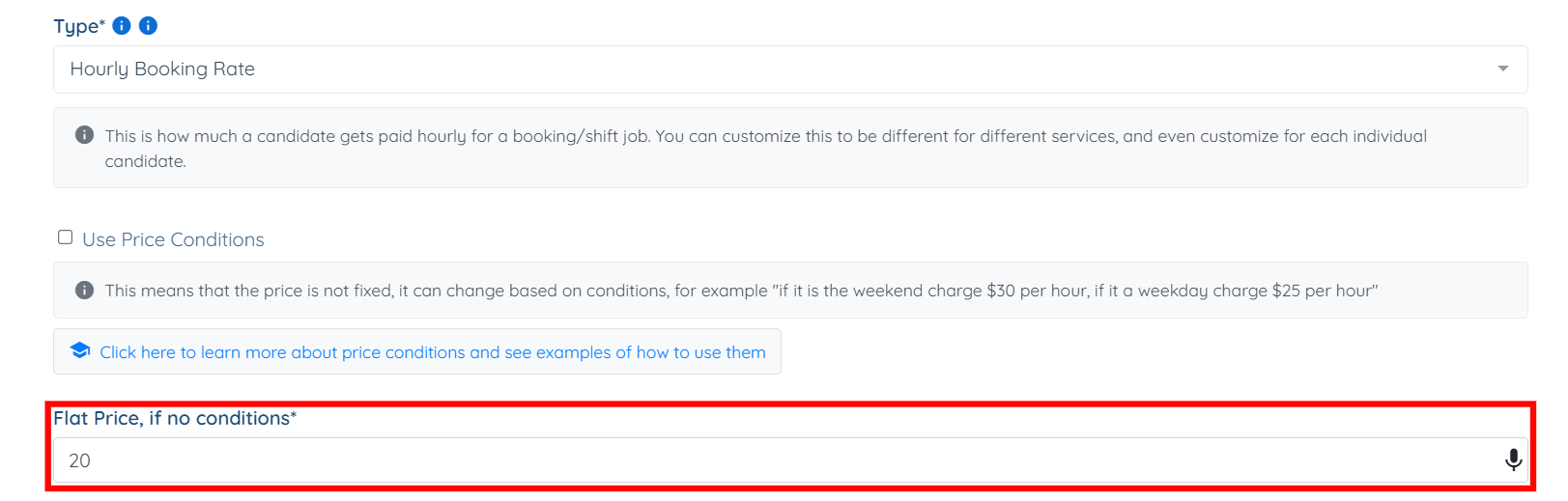
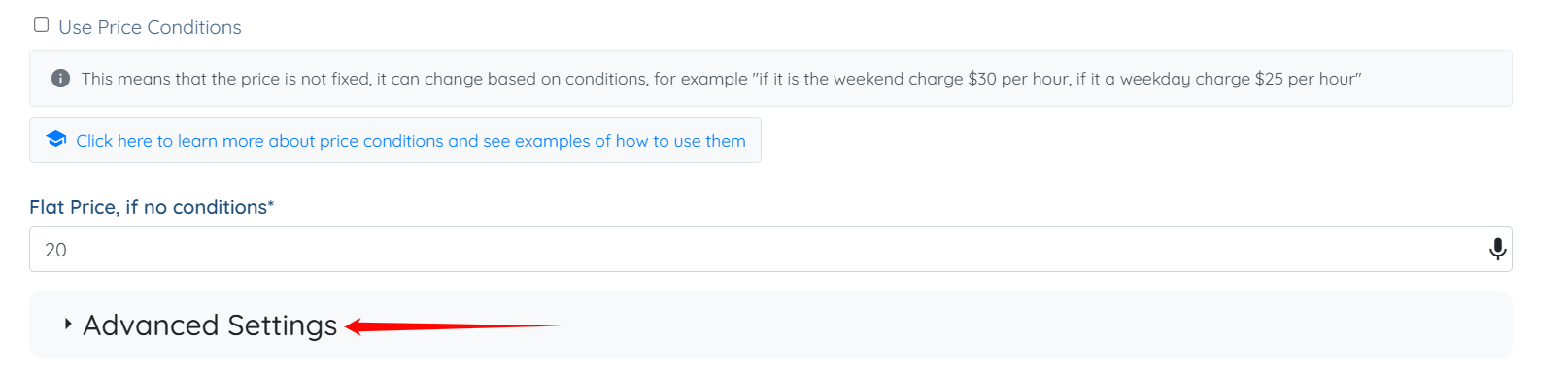
Step 7: Enter the price (hourly rate) you want to pay to a candidate.
Step 8: Click the Advanced Settings option to expand it and view the associated details.
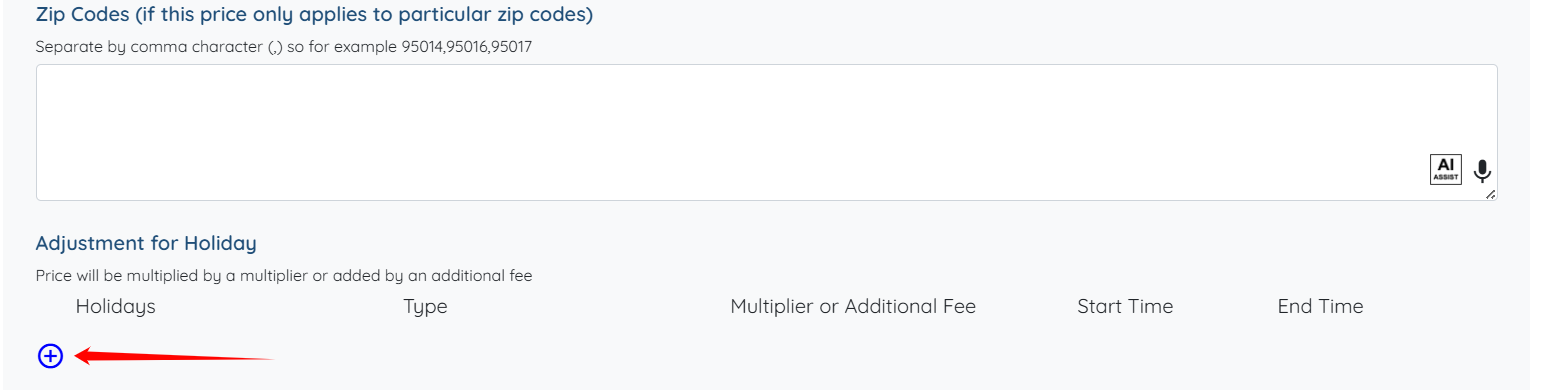
Step 9: Click the “+” button to continue.
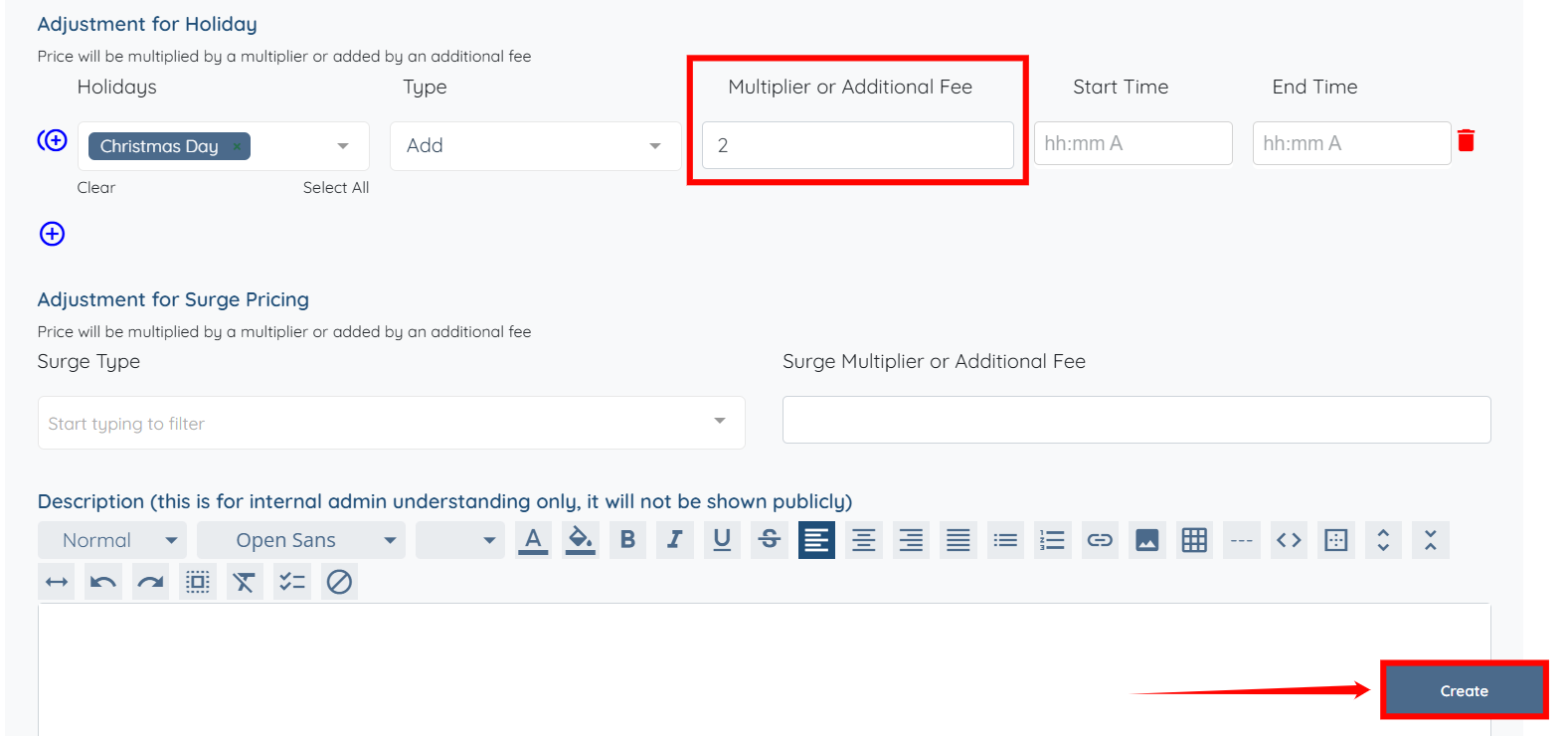
Step 10: Select the holiday for which you want to set the hourly rate.

Step 11: Select Multiply or Add from the dropdown list as required.

Step 12: Enter the multiplier or additional fee based on your selection in the previous step. Then, click the Create button to proceed.
The holiday hourly rate will be created successfully.