
Let’s get started 🚀
Enable or Disable Client Profile Access
Enable or disable client login access based on their current status to control when clients can access their profiles.
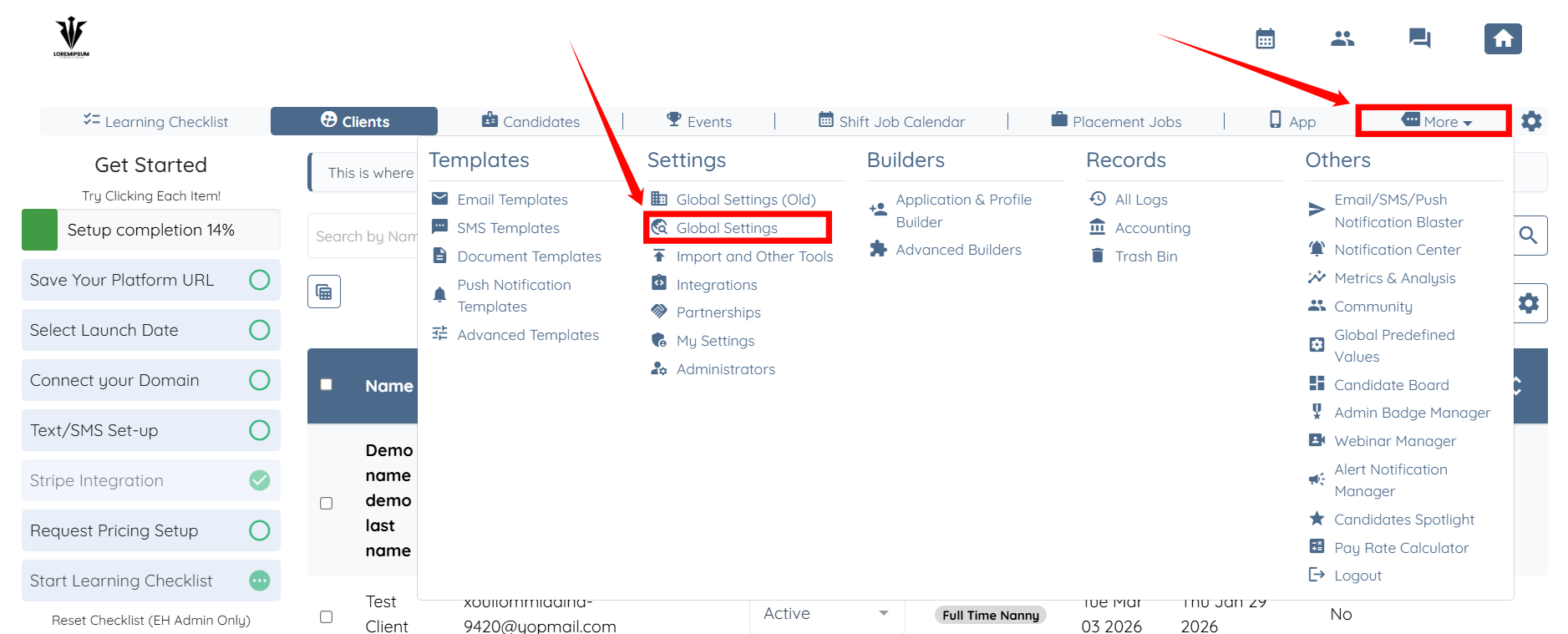
Step 1: Log in to your agent dashboard and click More > Global Settings, as shown in the screenshot below.
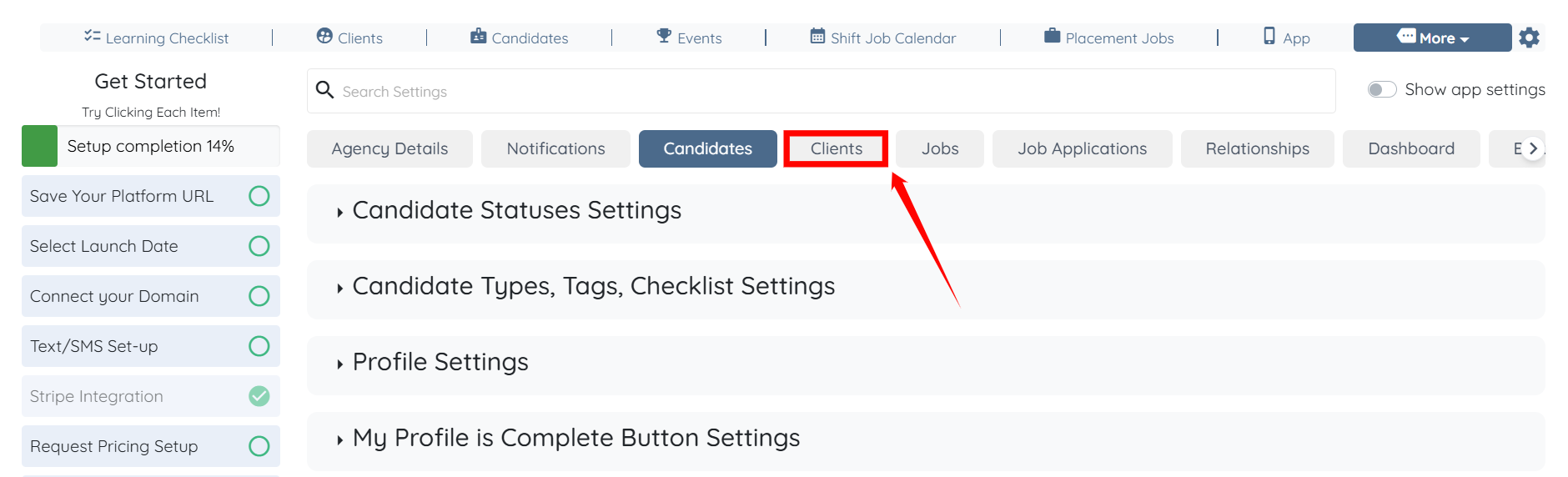
Step 2: Click the Clients tab from the available list of tabs.
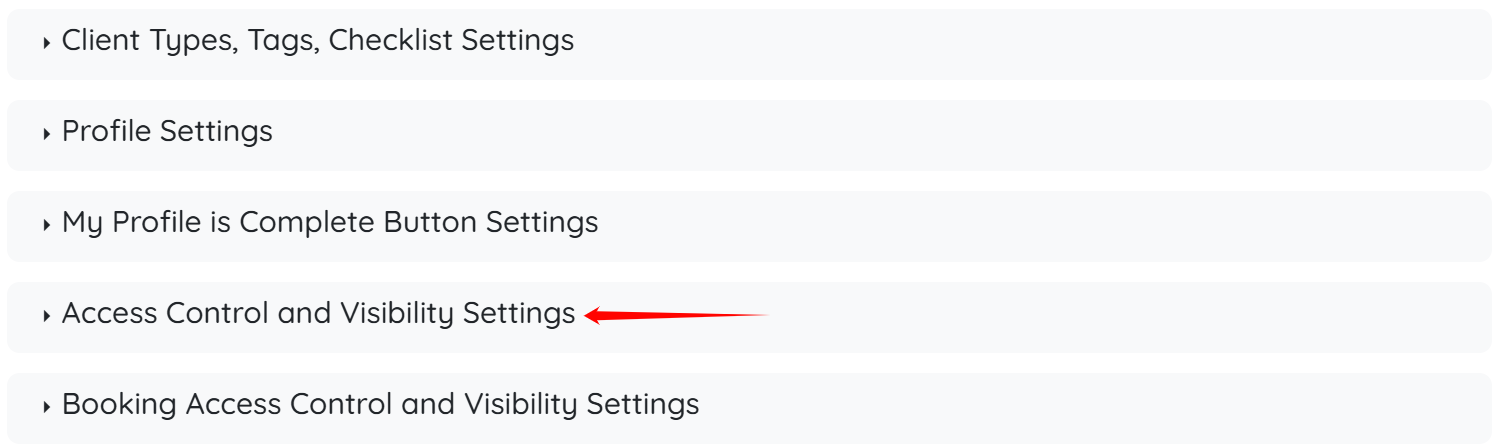
Step 3: Click the Access Control and Visibility Settings option to expand its details.
Step 4: Click the box under the Client No Dashboard Access Statuses field.
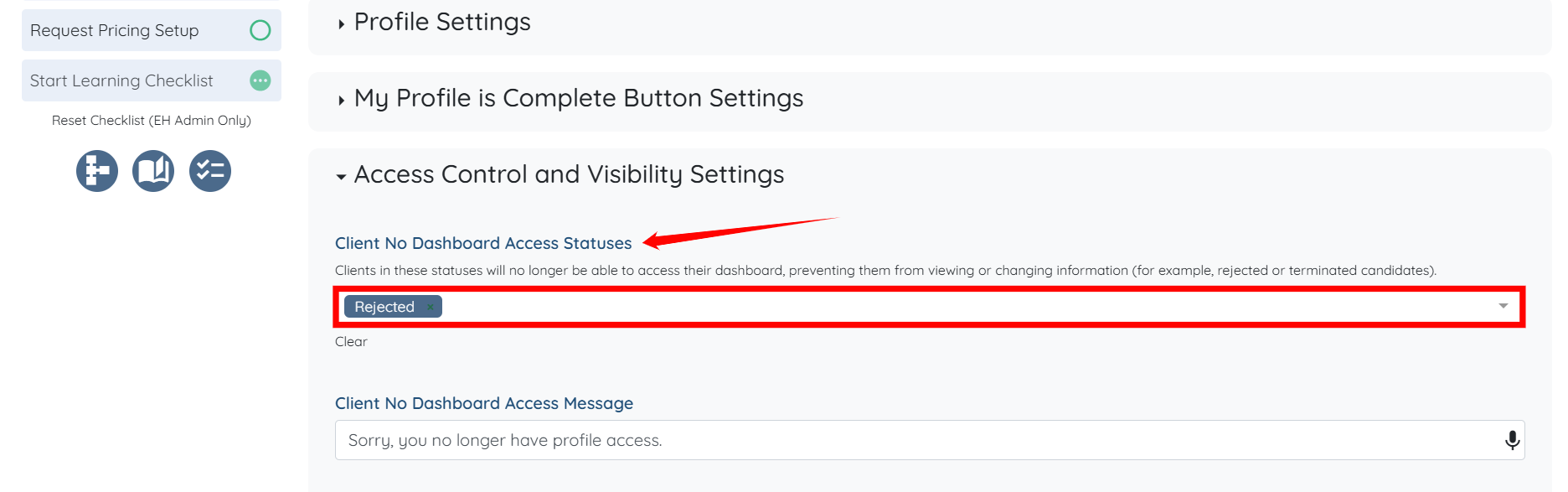
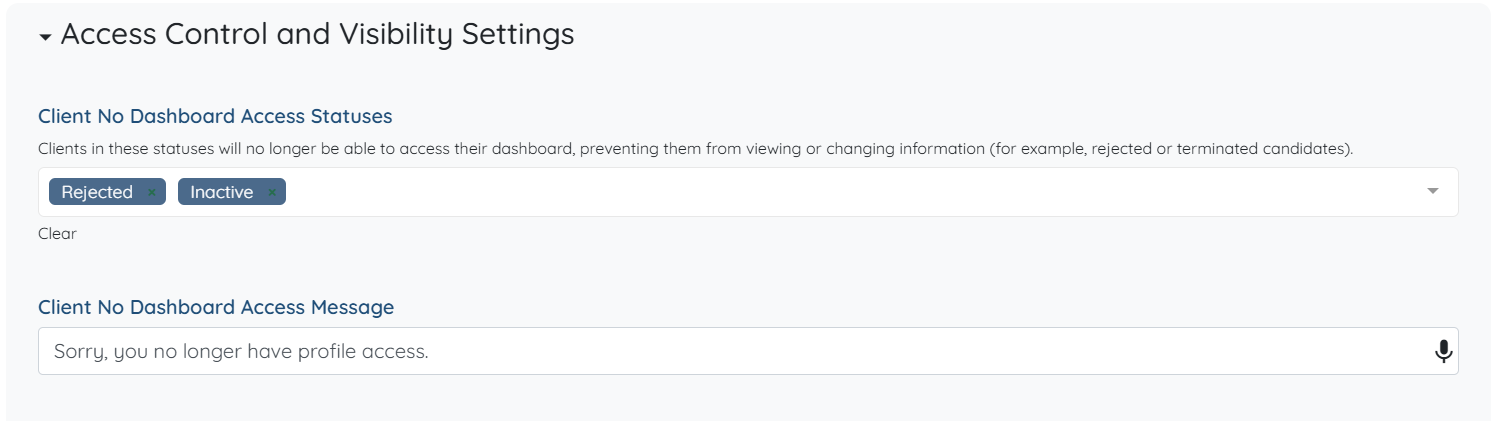
Step 5: Select the status of the clients that you want to prevent from accessing their dashboard.
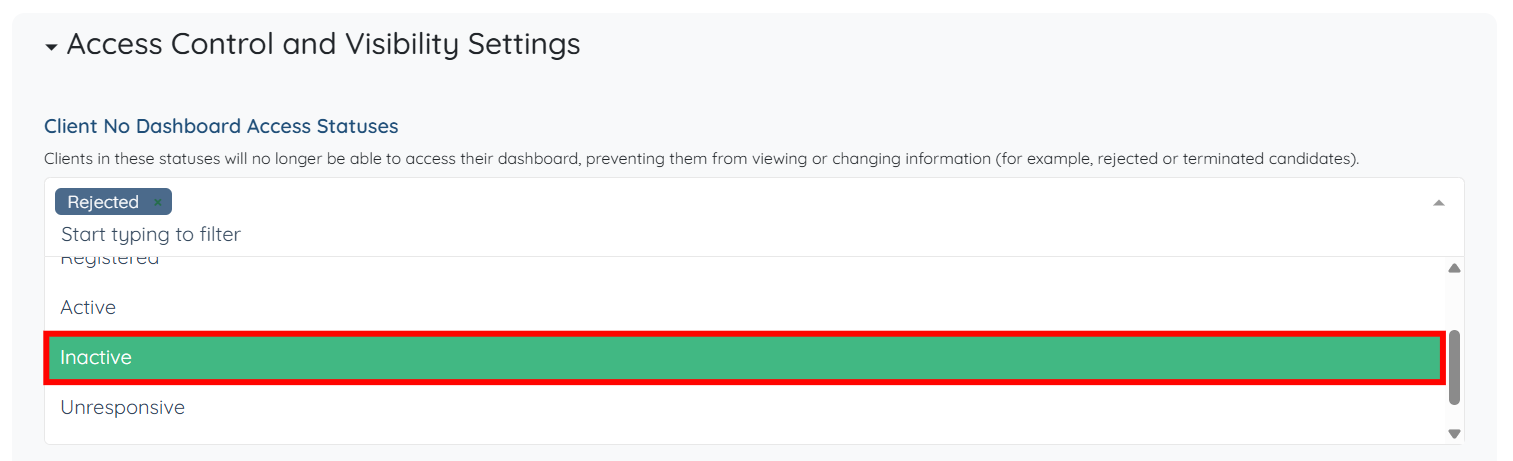
The settings will be saved automatically.
Enable or Disable Candidate Profile Access
Enable or disable candidate login access based on their current status to manage when candidates can access their profiles.
Step 1: Log in to your agent dashboard and click More > Global Settings, as shown in the screenshot below.
Step 2: Click the Candidates tab from the available list of tabs.
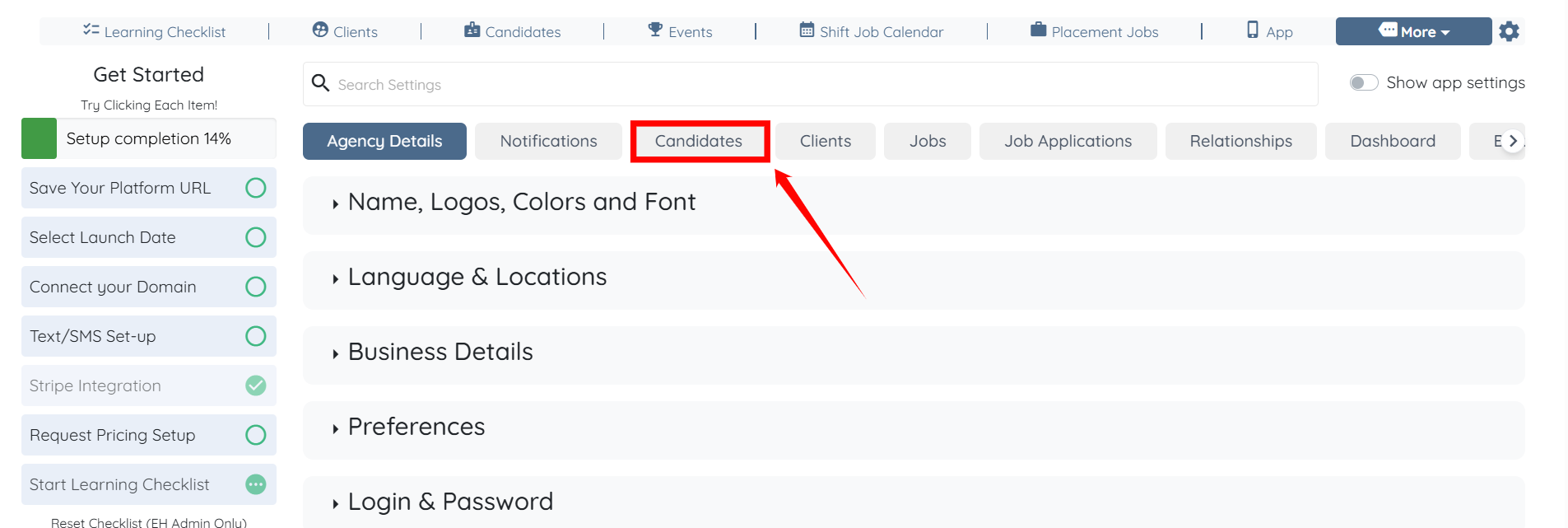
Step 3: Now, follow the same steps (Steps 3–5) as outlined in the Enable or Disable Client Profile Access section.